
Overview
Welcome to the Helios Vision AI customer portal: what it does, the roles, and a linked map of every module and setting.
Welcome
Helios Vision AI is one AI brain for every customer conversation. You build AI agents once, connect them to your channels, and they answer on WhatsApp, Instagram, TikTok, phone calls, email, web chat, Messenger and Telegram — 8 native channels in total — reading from your documents and data, and taking action through your integrations. You stay in charge: any conversation supports one-click human takeover, and every action respects the plan and permissions of your workspace.
This portal is where you set all of that up. This page is a map: what each module is for, and where to go next.
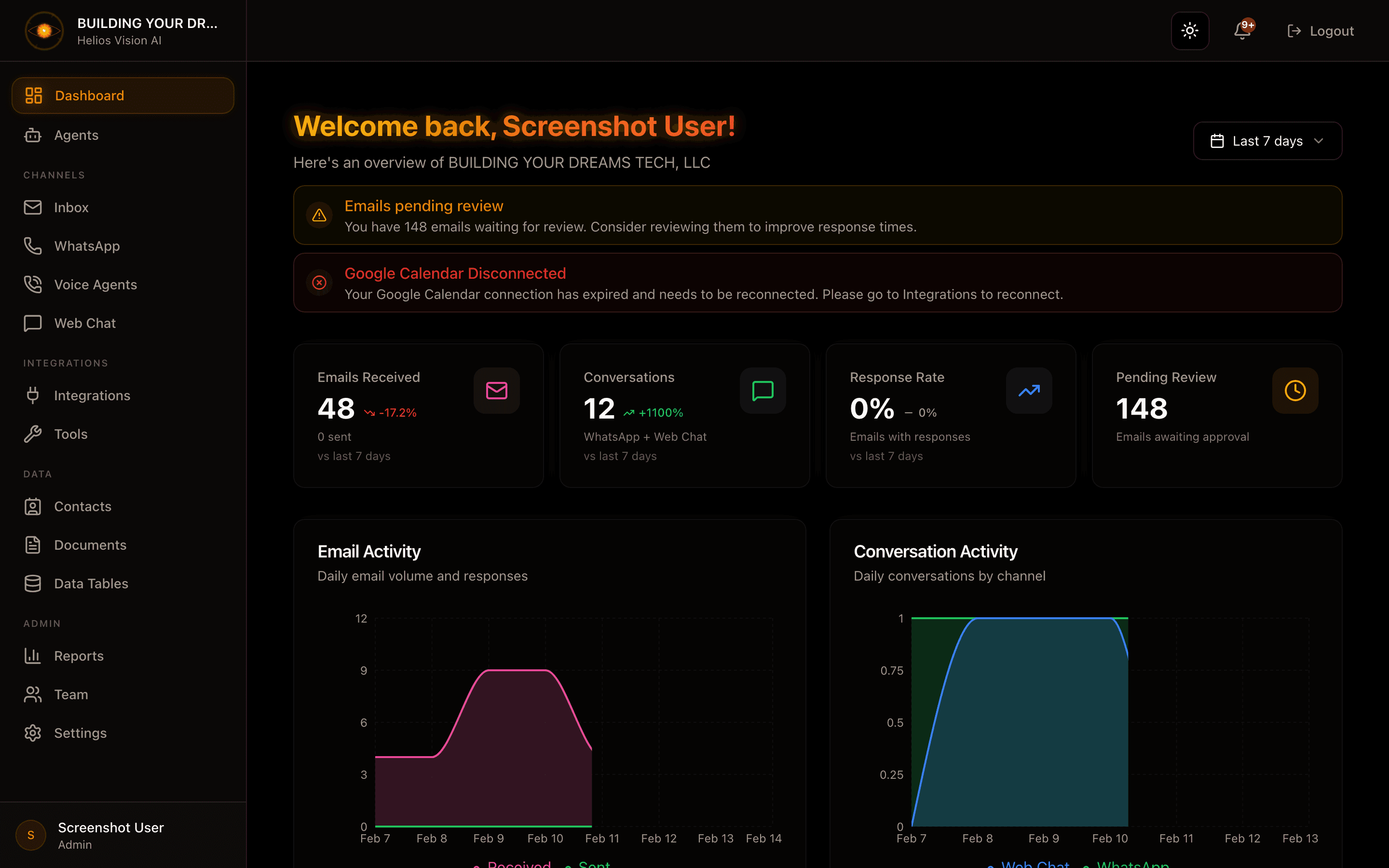
What Helios does
- Answers customers automatically across 8 channels with a consistent voice, in the customer's language.
- Keeps a human in the loop — supervise, edit, approve, or take over any conversation from a unified inbox.
- Reads your knowledge — agents ground their answers in your documents (RAG) and query your structured data tables in plain language.
- Takes action — through webhooks and integrations (Google Calendar, Gmail/Outlook, and more), agents can book, look up, and update on your behalf.
- Grows into a workforce — organize agents into Teams and run recurring Scheduled Tasks.
- Shows results — a live Dashboard, Reports, and a built-in CRM turn every conversation into pipeline.
Roles
Every workspace member has one role, and it controls what appears in the sidebar and what you can change:
| Role | What it can do |
|---|---|
| owner | Full access, including billing and plan. |
| admin | Full access to modules and settings; manage members. |
| agent | Build agents and knowledge, work conversations and the CRM. |
| viewer | Read-only access to the Dashboard and shared views. |
You only ever see data for the workspace you belong to. Some modules are limited to owner and admin (see each module's page).
Portal map
Get started
- Sign in and access — how logging in, sessions, and workspace access work.
- Dashboard — your workspace home: adaptive KPIs, activity charts, smart alerts, and your open tasks.
- Choose your plan — pick a plan and unlock the modules and channels it includes.
Build your AI workforce
- AI Agents — create and configure agents: channels, capabilities, model, and system prompt.
- Conversations — the unified inbox to supervise every agent's conversations across all channels, with human takeover.
- Teams — orchestrate multiple agents that hand off and collaborate. Rolling out gradually; contact support if you don't see it yet.
- Scheduled Tasks — have an agent run on a schedule (reports, follow-ups, checks). Rolling out gradually; contact support if you don't see it yet.
Helio, the built-in AI co-worker, sits at the top of the sidebar. Ask it to build agents, set up data, or explain what to do next — it works inside your workspace and never leaves it.
Customers
- Contacts (CRM) — a searchable contact list, a drag-and-drop sales pipeline, custom fields, and optional AI lead scoring. Your agents read and update these contacts automatically.
- Campaigns — outbound messaging campaigns. Rolling out gradually; contact support if you don't see it yet.
Telephony
- Voice Agents — agents that answer real phone calls, powered by your phone numbers.
- Phone Numbers — buy and manage the numbers your voice agents answer on.
Messaging channels
- Email (Inbox) — connect Gmail or Outlook and let agents draft, send, and review email with a human-review queue.
- WhatsApp — connect a WhatsApp number and manage conversations. See WhatsApp setup for the step-by-step Meta connection.
- Instagram — reply to Instagram DMs. Rolling out gradually; contact support if you don't see it yet.
- Messenger — reply to Facebook Messenger conversations. Rolling out gradually; contact support if you don't see it yet.
- Telegram — connect a Telegram bot. Rolling out gradually; contact support if you don't see it yet.
- TikTok — auto-reply to public comments by keyword. Rolling out gradually; contact support if you don't see it yet.
- Web Chat — the chat widget for your website. See Web Chat widget for installation and appearance.
Knowledge and data
- Documents — upload files as a knowledge base your agents search when answering (RAG).
- Data Tables — structured tables your agents query in plain language, with CSV import/export and templates.
Integrations and automation
- Integrations — connect external services (Google Calendar, Gmail/Outlook, and more) for agents to use.
- Webhooks — outbound actions your agents call over HTTP, and inbound endpoints that trigger an agent.
- Gmail connection — connect a Gmail account for the Inbox module.
- API keys — bring your own AI provider key (BYOK).
- Twilio setup — connect Twilio for voice and phone numbers.
Administration
- Reports — metrics and analytics across channels and agents (owner/admin).
- Members — invite people and assign roles (owner/admin).
- Billing and usage — plan, invoices, and AI-credit usage (owner).
Settings
- General settings — workspace name, language, timezone, and branding.
- Categories — the labels used to organize conversations and contacts.
- Notifications — system alerts and where they are delivered.
Recommended setup flow
- Choose your plan so the right modules and channels appear.
- Add your AI key (BYOK) under API keys, or use the AI credits included on paid plans.
- Create an agent and give it a personality and a system prompt.
- Add knowledge — upload Documents and/or create Data Tables, then assign them to the agent.
- Connect channels — WhatsApp, Email, Web Chat, Voice, and any of the messaging channels available to you.
- Add integrations and webhooks if your agent needs to take action in other systems.
- Test the agent, then watch results in the Dashboard, Conversations, and Reports.
Conventions
- The portal is fully bilingual (English/Spanish). Module names in this documentation match the English UI labels; if your workspace language is Spanish you will see their Spanish equivalents.
- Availability depends on your plan and role. Some channels and modules roll out gradually — if one is missing from your sidebar, contact support.
- Steps are described as paths within the portal, for example Sidebar -> Agents.