
Team
Invite teammates, assign owner, admin, agent, or viewer roles, activate or deactivate members, and track pending invitations.
Objective
Manage the people in your workspace: invite teammates, assign roles that control what each person can do, deactivate access when someone leaves, and see invitations that have not been accepted yet. This area is labeled Members in the app.
Access
Sidebar -> Admin -> Members Path: /app/{tenant}/team
The Members entry appears in the sidebar only for the owner and admin roles. Agents and viewers do not see this page.
Roles
| Role | Access |
|---|---|
| owner | Full access. The founding account of the workspace. Fixed: it cannot be reassigned or deactivated. |
| admin | Full management: team, settings, and all resources. |
| agent | Can create and manage AI agents and conversations. |
| viewer | Read-only access. Can view data but cannot make changes. |
Only owner and admin can open this page and manage members (invite, change roles, activate/deactivate). Everyone counts toward your plan's member limit.
Prerequisites
- You are signed in as owner or admin.
- Your email is verified (unverified accounts are prompted to verify before inviting).
- Your subscription is active (a restricted or suspended subscription blocks inviting).
- Your plan has an available member seat. Single-seat plans reach the limit with just the owner, so adding teammates requires a plan with more seats.
Members list
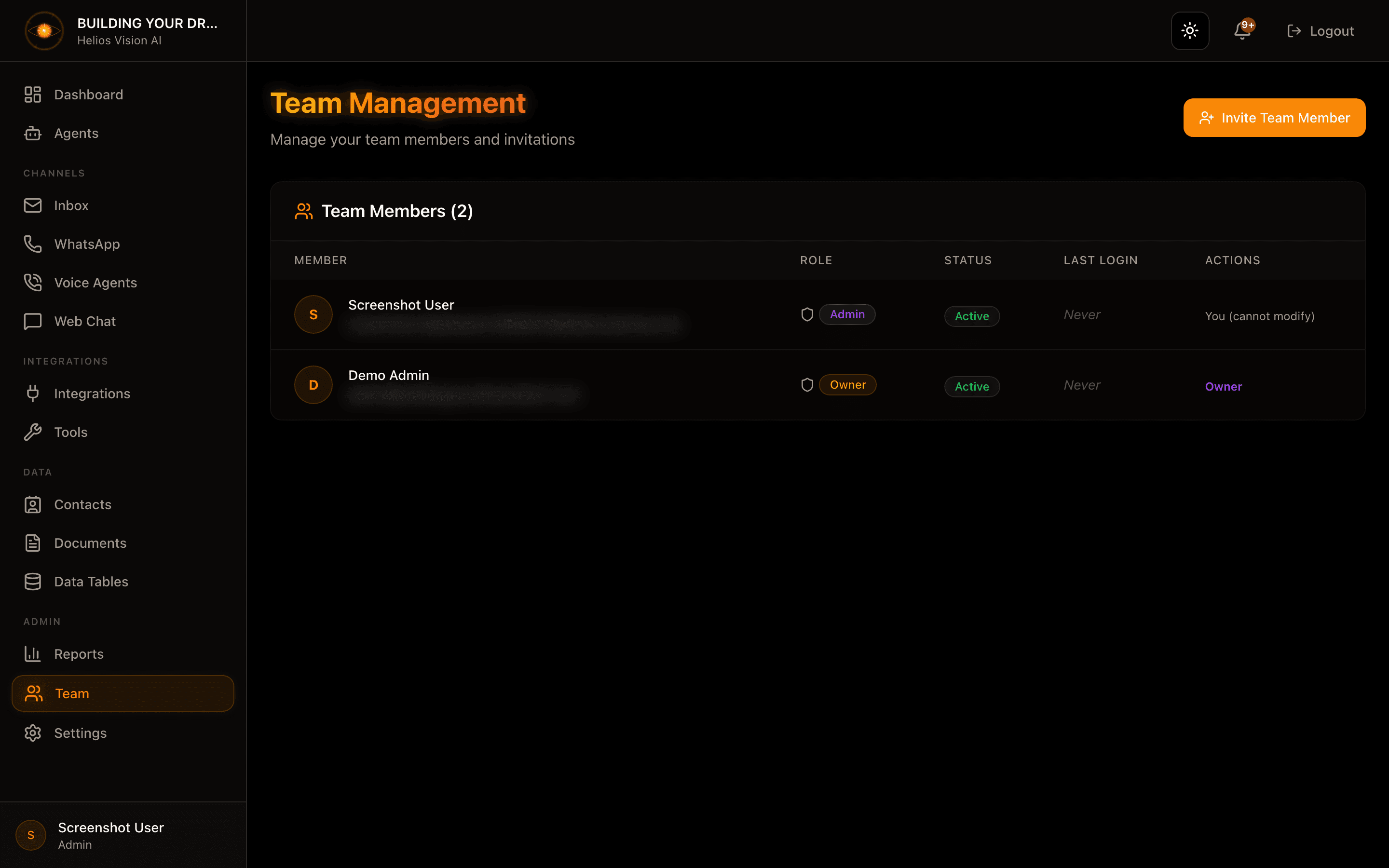
The main table lists every person in your workspace, active or inactive.
| Column | Description |
|---|---|
| Member | Name (or Unknown if not set) and email address. |
| Role | Owner, Admin, Agent, or Viewer. |
| Status | Active or Inactive. |
| Last Login | Date of the person's last sign-in, or Never. |
| Actions | Management menu. Owner/admin only. |
Invite a member
- Press Invite Team Member (top right).
- Fill in Email Address and select a Role.
- Press Send Invitation.
A pending invitation is recorded and shown under Pending Invitations. Invitations are valid for 7 days. When the person accepts, they set their name and password, and their account is created in your workspace with the role you assigned.
Fields:
| Field | Required | Format | Example | Notes |
|---|---|---|---|---|
| Email Address | Yes | Valid email | user@example.com | Must not already have an account in this workspace, and must not already have a pending invitation. |
| Role | Yes | Admin / Agent / Viewer | Agent | Sets the new member's permissions. Defaults to Agent. The owner role cannot be assigned here. |
The role selector shows a short description of what each option can do:
- Admin - Full access — Can manage team, settings, and all resources.
- Agent - Manage agents and conversations — Can create and manage AI agents and conversations.
- Viewer - Read-only access — Can view data but cannot make changes.
Change a member's role
- In the members table, open the Actions menu (three-dots icon).
- Under Change Role, select Admin, Agent, or Viewer.
- Confirm in the Change user role dialog by pressing Update role.
The member's current role is disabled in the menu. The new permissions apply immediately.
Activate / deactivate a member
- In the members table, open the Actions menu.
- Press Deactivate User or Activate User.
- Confirm in the dialog.
A deactivated member loses access immediately. Reactivating a member is blocked if it would exceed your plan's active-member limit.
Pending invitations
Invitations that have not been accepted appear in the Pending Invitations table (owner/admin only, shown when at least one invitation is pending).
| Column | Description |
|---|---|
| Address the invitation was sent to. | |
| Role | Role the person will get when they accept. |
| Invited By | Name of the member who created the invitation. |
| Expires | Date the invitation stops being valid (7 days after it was created). |
Good practices
- Give each person the lowest role that lets them do their job. Use Viewer for read-only access.
- Keep only the people who need it as Admin; admins can manage the team and all settings.
- Deactivate members who no longer need access instead of leaving active seats unused.
- Track your member count against your plan so invitations do not get blocked at the limit.
Common notes
- You cannot modify your own account from this page. Your row shows You (cannot modify) instead of an actions menu.
- The owner role is fixed: it cannot be reassigned or deactivated, and the owner's row shows an Owner label instead of a menu.
- Invitations expire after 7 days. If one expires before it is accepted, invite the person again.
- New invitations and active members both count toward your plan's seat limit.
Common errors
| What you see | Likely cause | What to do |
|---|---|---|
| Failed to send invitation | The email already has an account here, an invitation is already pending for it, your email is not verified, or your plan's member limit is reached. | Use a different email, verify your email, or upgrade your plan / free a seat. |
| Unable to update role | The role change could not be saved (for example, an attempt to change the owner). | Retry. The owner role cannot be changed. |
| Unable to update user status | Activate/deactivate failed, or activating would exceed your plan's member limit. | Deactivate another member or upgrade your plan, then try again. |
| Verify-email prompt when pressing Invite Team Member | Your email address is not verified yet. | Open the verification link sent to your inbox, then invite again. |
| Subscription prompt when pressing Invite Team Member | Your subscription is restricted or suspended. | Resolve billing to restore access, then invite again. |