Notifications
Review workspace alerts and channel events: escalations, billing, integration and plan warnings — filter, search, and mark as read.
Objective
Keep track of everything your workspace needs to react to: conversations handed off to a human, emails waiting for review, billing problems, plan-limit warnings, and integration issues — all in one list you can filter, search, and mark as read.
Access
Header -> bell icon -> View all Route(s): /app/{tenant}/notifications
There is no sidebar entry. Open the bell icon in the top navigation bar and click View all to reach the full Notifications page.
Roles
- owner, admin, agent, viewer
Notifications are shared across the workspace. Everyone sees the same workspace-wide alerts, plus any addressed specifically to their own account. Read/unread state is shared: when one teammate marks a workspace notification as read, it is read for everyone.
Notification bell (header)
The bell icon lives in the top navigation bar on every page.
| Element | Behavior |
|---|---|
| Unread badge | Red counter showing unread notifications; displays 9+ past nine. |
| Critical dot | Extra rose dot when an operationally critical alert is unread (voice provider out of credit / invalid key / error, integration disconnected, payment failed, resources deactivated). |
| Auto-refresh | The bell checks for new notifications every 30 seconds and briefly pulses when the unread count rises. |
| Dropdown | Shows up to 10 unread notifications, each with View and Mark read. |
| View all | Opens the full Notifications page. |
| Mark all as read | Marks the unread items currently shown in the dropdown as read. |
Notifications page
Tabs and search
| Control | What it does |
|---|---|
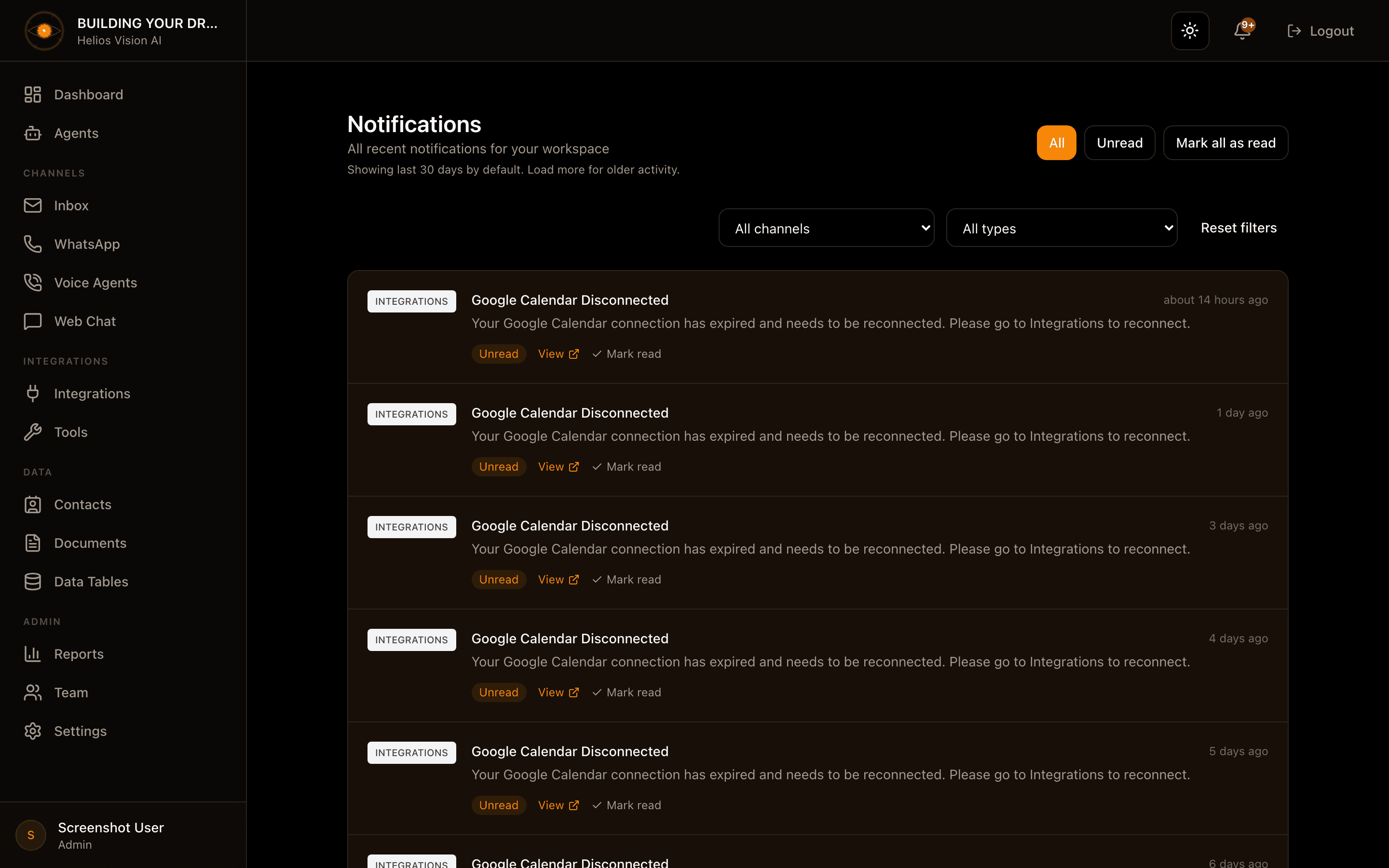
| All | Shows recent notifications (read and unread) within the default time window. |
| Unread | Shows every unread notification regardless of age. |
| Search | Filters by text in the title or message (updates as you type). |
| Mark all as read | Appears when unread items are present; marks the notifications currently loaded on the page. |
Filters
| Filter | Options |
|---|---|
| Module | All channels, WhatsApp, Web Chat, Email, Tasks, Integrations, Billing, System |
| Type | All types, WhatsApp escalation, Web Chat escalation, Email pending review, Payment failed, Subscription downgraded, Plan limit warning, Resources deactivated |
| Reset filters | Clears the search text and both filters back to their defaults. |
Notification types
| Type | Meaning |
|---|---|
| WhatsApp escalation | A WhatsApp conversation was handed off to a human. The row shows the contact, escalation reason, who took it over, and who else has seen it. |
| Web Chat escalation | A web chat conversation was handed off to a human. |
| Email pending review | An AI-drafted email reply is waiting for approval before it is sent. |
| Payment failed | A subscription payment could not be processed. |
| Subscription downgraded | The workspace plan was downgraded. |
| Plan limit warning | The workspace is approaching or has exceeded a plan limit. |
| Resources deactivated | Resources were deactivated to fit the current plan's limits. |
Reading a notification
Each row shows a colored module badge, a title, the relative time, the message, and an Unread or Read badge. When a notification links to a related record, a View link opens it (for example the WhatsApp conversation, phone numbers, or integration settings) and marks the item as read. Use Mark read to dismiss a single item without leaving the page.
Time window and loading more
By default the All tab shows recent activity limited to your plan's data-retention window, up to 30 days; the page notes how many days are shown. Use Load more to page back through older notifications. The Unread tab is not limited by this window.
Good practices
- Check the Unread tab daily so escalations and pending email reviews do not sit unanswered.
- Watch for the rose critical dot on the bell — it flags issues that are degrading service right now.
- Use the Module and Type filters together to isolate one channel or one kind of alert.
- After Load more, run Mark all as read again to clear the newly loaded older items.
Common notes
- Read/unread state is shared across the workspace; a notification marked read by anyone shows as read for the whole team.
- Mark all as read only affects the notifications currently loaded on the page, not those still hidden behind Load more.
- How far back the default All view reaches depends on your plan's data retention (capped at 30 days). Switch to Unread to see older items that are still unread.
Screenshot