
Onboarding - Plan
Pick your plan during onboarding: start on Free or begin a 14-day trial of a paid plan, then finish checkout in Stripe.
Objective
Choose how your new workspace continues after signup: stay on the Free plan or begin a 14-day trial of a paid plan (Starter, Growth, or Business), or talk to sales about Enterprise. This is the plan-selection step of onboarding; it presents the same plan picker used elsewhere in the product, at a stable route.
Access
This is a guided onboarding step, not a sidebar item.
Route: /app/{tenant}/onboarding/plan
- The plan you pick when you sign up routes you straight to Stripe Checkout (paid plans) or to the dashboard (Free), so most people never stop on this page.
- If you cancel a paid checkout that started here, you return to this screen to choose again.
- After your workspace exists, ongoing plan management lives under Settings -> Plan & Billing (see Billing & Usage).
Roles
- Any signed-in member of the workspace can open the page and continue on Free.
- Starting a paid trial or subscription requires owner or admin — checkout is rejected for other roles.
Prerequisites
- You must be signed in. If you are not, you are sent to the login page and back here afterwards.
- Your account must belong to a workspace (tenant). Without one you are returned to the home page.
- A paid trial or subscription needs a card entered on Stripe's hosted checkout. No card is needed to continue on Free.
The plan selection screen
The screen is headed Choose how you want to continue, with the subtitle "Start free or begin a 14-day trial with a card. You can upgrade or downgrade anytime." Below it, every active plan is shown side by side as a card, ordered from lowest to highest tier: Free, Starter, Growth, Business, Enterprise.
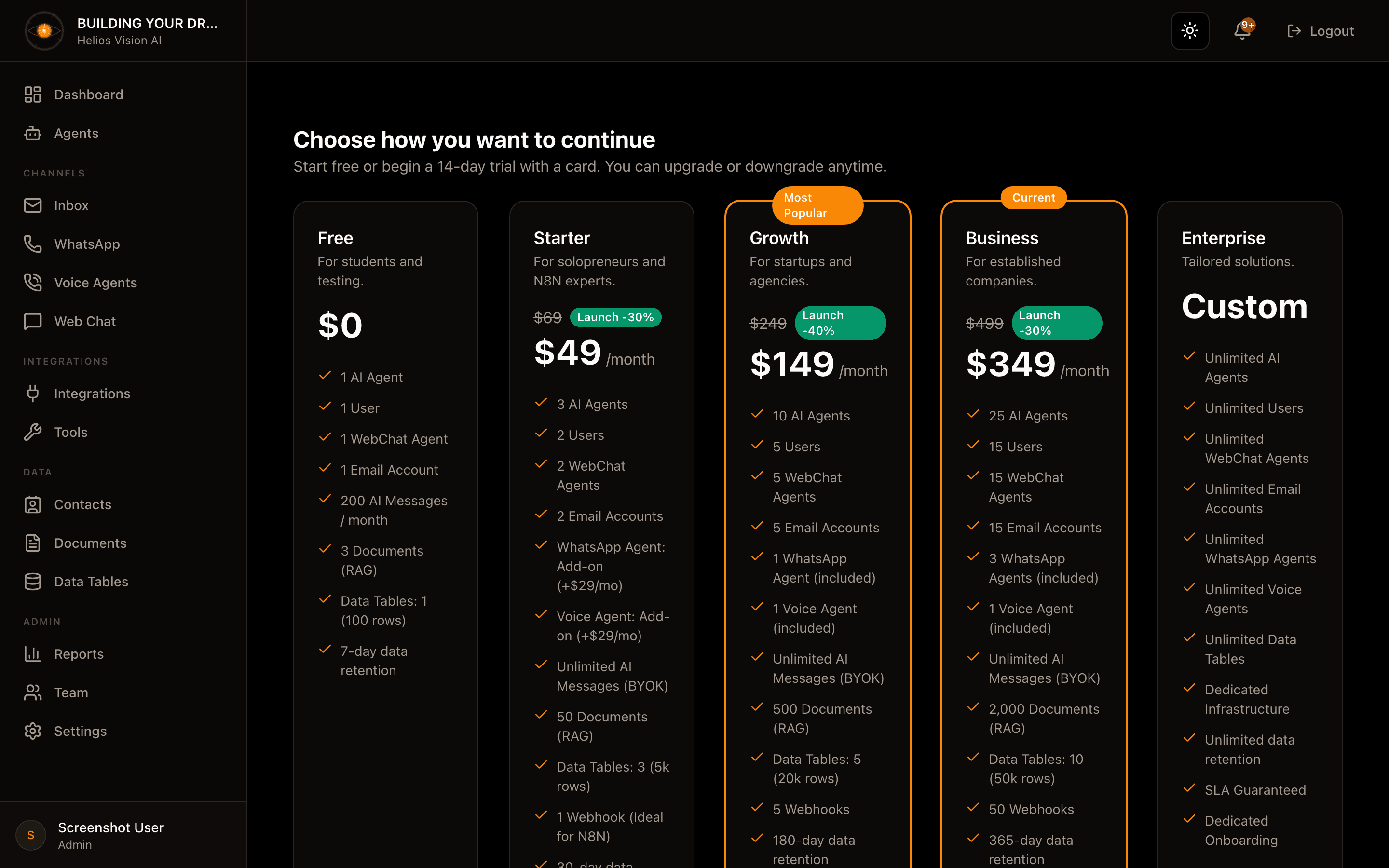
What each plan card shows
| Element | Description |
|---|---|
| Name and description | The plan tier and a one-line summary |
| Price | Monthly price, or Custom for Enterprise. Paid plans may show a struck-through original price and a launch discount badge |
| Stat row | Four headline numbers: Agents, Users, AI Credits, Channels |
| Feature list | An "Everything in X, plus:" list of what the tier adds over the one below it. A +N more features toggle expands the rest |
| Badge | The most popular tier is flagged as recommended; your current plan is flagged Current |
The exact limits and prices come from your workspace's live plan catalog, so they always match what you will be billed.
Choosing a plan
The button on each card depends on your situation:
| Situation | Button |
|---|---|
| Free — when it is your current plan | Current plan (disabled) |
| Free — when you are on a paid plan | Start Free (continues to the dashboard) |
| Your current paid plan | Current plan (disabled) |
| A paid plan, first time going paid | Start 14-day trial |
| A paid plan, returning customer | Subscribe |
| A paid plan with no price configured | Unavailable (disabled) |
| Enterprise | Contact Sales |
Returning customers (anyone who has had a paid subscription before) are not offered a trial again; they see Subscribe instead of Start 14-day trial. This is enforced on the server, not just in the button.
Starting a paid trial or subscription
Choosing Start 14-day trial or Subscribe hands you off to Stripe's hosted checkout to enter card details.
- On success you land on the Billing & Subscription page with your new plan active.
- If you cancel or close checkout, you come back to this plan-selection screen.
- Checkout is rate-limited to a handful of attempts in a short window; if you hit the limit, wait a few minutes and retry.
- If your workspace already has an active subscription, checkout is blocked and you are directed to manage the plan through the Stripe billing portal instead (from Settings -> Plan & Billing).
Enterprise: Contact Sales
The Enterprise card opens a Contact sales form instead of checkout. Your name and email are pre-filled from your account.
| Field | Required | Notes |
|---|---|---|
| Full name | Yes | Pre-filled |
| Yes | Pre-filled | |
| Company name | Yes | |
| Number of AI agents needed | No | Free text, e.g. "10-20" |
| Tell us about your needs | Yes | Use case, expected volume, integrations, requirements |
After you submit, a confirmation appears and the sales team follows up within 24 to 48 business hours.
Good practices
- Compare the stat rows (Agents, Users, AI Credits, Channels) across tiers before you pick, and expand +N more features on any card you are weighing.
- To try a paid plan without commitment, use Start 14-day trial; you can change or cancel later from the Stripe portal.
- If you only need to get into the workspace first, continue on Free and upgrade later from Settings -> Plan & Billing.
- For custom volume, integrations, or an SLA, use Contact Sales rather than a self-serve plan.
Common notes
- Prices and limits are read live from your plan catalog, so what you see here is what you will be charged.
- Cancelling Stripe checkout never charges you and never changes your plan; you simply return to this screen.
- The trial length is 14 days and applies only the first time your workspace goes paid.
- Plan changes after onboarding are made from the Billing page and the Stripe portal, not from this screen.