
Authentication & Access
Sign in, sign up, Google sign-in, email verification, password recovery and team invitations in Helios Vision AI.
Objective
Explain how to enter the portal: sign in, create a workspace, sign in with Google, verify your email, accept team invitations, and recover your password.
Access
Authentication pages are public (no session required). Routes:
- /login — sign in
- /signup?plan={plan} — create a workspace (reached from /pricing)
- /auth/complete?plan={plan} — finish a Google sign-up
- /auth/verified — email confirmed
- /auth/verify-failed?reason={reason} — verification link expired or invalid
- /forgot-password — request a reset link
- /reset-password — set a new password
- /invite/{token} — accept a team invitation
After a successful sign-in you land on your workspace dashboard at /app/{tenant}/dashboard.
Roles
- Self-service sign up creates the workspace owner.
- Team invitations assign one role: admin, agent, or viewer (chosen by the person who invites you).
- owner and admin can manage the workspace; agent and viewer have limited access.
Sign in
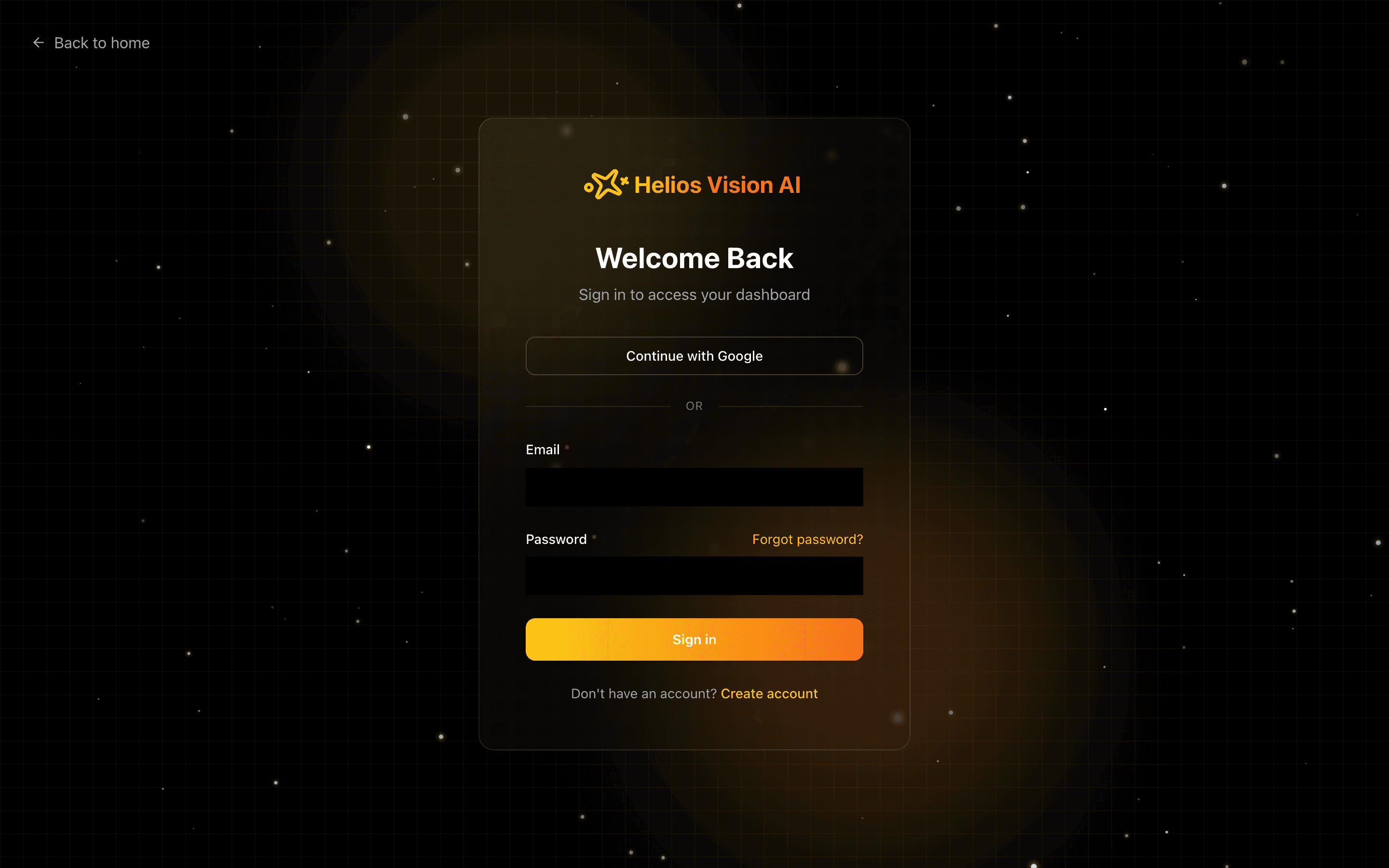
Go to /login and choose one option:
- Continue with Google — sign in with your Google account. Google's account chooser always appears so you pick the account deliberately.
- Email + Password — fill in the fields and press Sign in.
Fields:
| Field | Mandatory | Format | Example | Note |
|---|---|---|---|---|
| Yes | valid email | name@company.com | Used for authentication | |
| Password | Yes | your account password | ******** | - |
Notes:
- Use Forgot password? to start a reset.
- Create account takes you to /pricing to pick a plan first.
- Sign-in attempts are rate limited (up to 10 per 15 minutes). If you hit the limit, wait a few minutes and try again.
Already signed in
If you open /login while you still have an active session, the page does not silently reuse it. It shows You are already signed in with your email and two choices:
- Continue as {name} — keep the current session and go to your dashboard.
- Use another account — sign out of this browser and show the sign-in form.
Create an account (sign up)
Sign up always starts from a selected plan. If you open /signup without a plan, you see Choose a plan to continue and a View plans button that sends you to /pricing.
Steps:
- Go to /pricing and choose a plan.
- You are taken to /signup?plan={plan}.
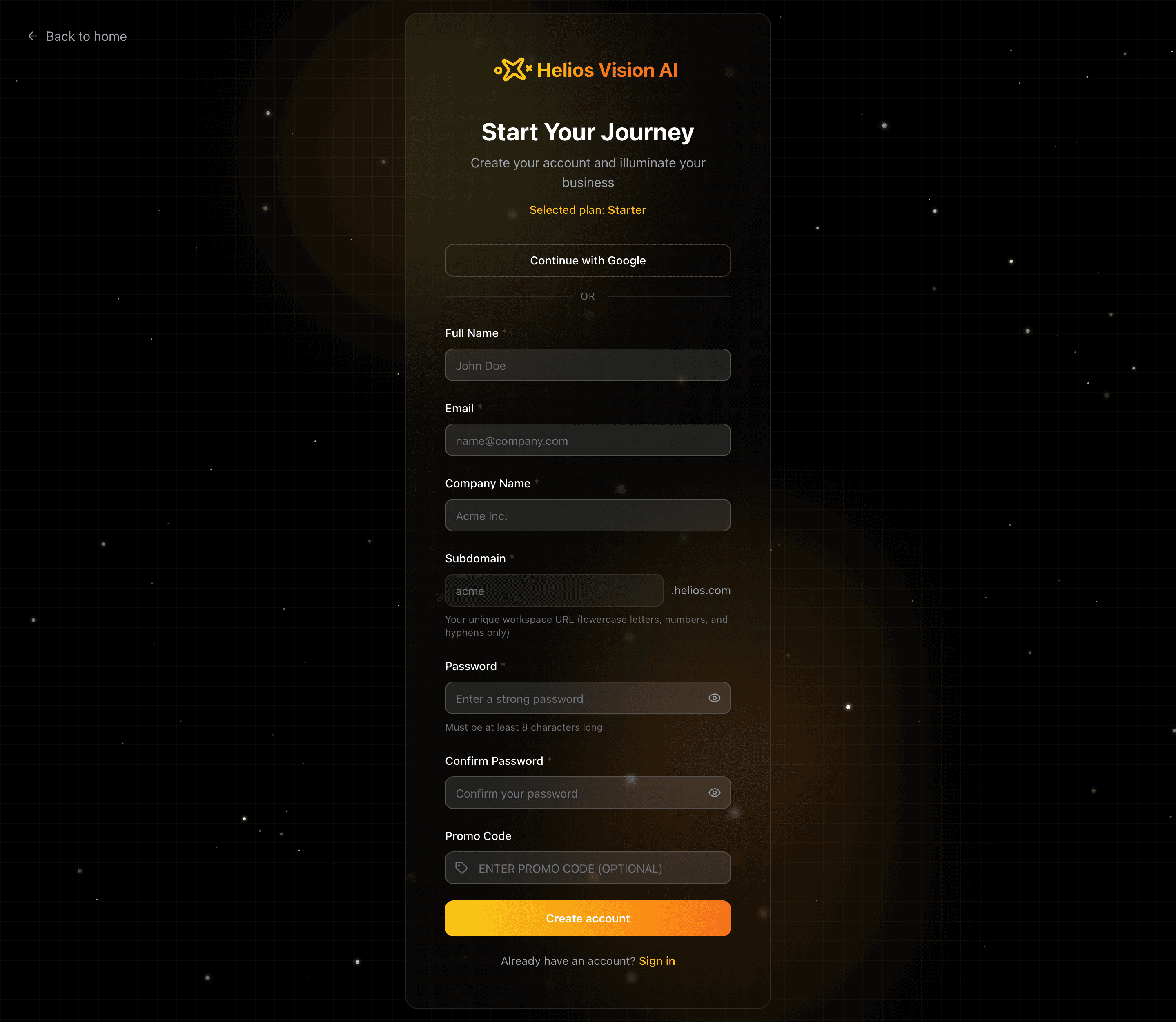
- Either press Continue with Google (finishes on /auth/complete) or complete the form and press Create account.
Fields:
| Field | Mandatory | Format | Example | Note |
|---|---|---|---|---|
| Full Name | Yes | free text | John Doe | Initial owner name |
| Yes | valid email | name@company.com | Main email | |
| Confirm Email | Yes | equal to Email | name@company.com | Must match Email |
| Company Name | Yes | free text | Acme Inc. | Workspace name; auto-fills the Workspace URL |
| Workspace URL | Yes | lowercase letters, numbers and hyphens | acme | Your unique workspace address, shown with a .helios.com suffix |
| Password | Yes | minimum 8 characters | ******** | Show/hide toggle available |
| Confirm Password | Yes | equal to Password | ******** | Must match Password |
| Promo Code | No | text | LAUNCH30 | Optional discount code |
Workspace URL rules:
- Lowercase letters, numbers and hyphens only.
- Between 3 and 63 characters; cannot start or end with a hyphen.
- Some names are reserved (for example www, api, admin, support) and cannot be used.
- Availability is checked as you type; you see available, already taken, or checking.
After you submit:
- Free plan: your workspace opens immediately at /app/{tenant}/dashboard.
- Paid plan: you continue to a secure Stripe checkout with a 14-day free trial.
- Free workspaces bring your own OpenAI key (BYOK); managed AI credits are a paid benefit.
- A confirmation email is sent so you can verify your address (see Email verification).
- Enterprise plans are sales-assisted and cannot be created here.
Complete your account (Google)
If you sign in with Google and do not have a workspace yet, you are sent to /auth/complete to finish setup. A plan must be selected; otherwise you are redirected to /pricing.
Fields:
| Field | Mandatory | Format | Example | Note |
|---|---|---|---|---|
| Company Name | Yes | free text | Acme Inc. | Workspace name |
| Subdomain | Yes | lowercase letters, numbers and hyphens | acme | Same rules as Workspace URL, shown with a .helios.com suffix |
Press Finish setup. Free plans open the dashboard; paid plans continue to checkout. Accounts created with Google are email-verified automatically.
Email verification
New email/password accounts receive a confirmation email from Helios Vision AI. The link is valid for 72 hours.
- Open the confirmation email.
- Click Confirm Account.
- You land on /auth/verified. If you are signed in, continue to your dashboard; otherwise sign in.
Notes:
- Some actions stay restricted until you verify (for example, inviting team members).
- Google sign-ups are already verified and skip this step.
- If the link is expired or invalid, you are sent to /auth/verify-failed, where you can enter your email to receive a new link. For your privacy, the same confirmation is shown whether or not an account exists, and a new link cannot be requested more than once per minute.
Team invitations
Invitations are created by a workspace owner or admin and are valid for 7 days.
- Open the invitation link /invite/{token}.
- Review the workspace name, the role you will receive, and your invited email (which is fixed).
- Complete the form and press Accept Invitation and Create Account.
- Your account is created with the assigned role and your workspace dashboard opens.
Fields:
| Field | Mandatory | Format | Example | Note |
|---|---|---|---|---|
| Full Name | Yes | free text | John Smith | At least 2 characters |
| Password | Yes | minimum 8 characters | ******** | Show/hide toggle available |
| Confirm Password | Yes | equal to Password | ******** | Must match Password |
Note: if the invitation has expired, the page shows Invitation expired. Ask the workspace administrator for a new one.
Reset a forgotten password
- Go to /forgot-password.
- Enter your Email and press Send reset link.
- For your privacy, the page confirms that a link was sent if an account exists.
- Open the email and follow the link to /reset-password.
- Set the new password and press Update password. You are returned to /login.
Reset fields:
| Field | Mandatory | Format | Example | Note |
|---|---|---|---|---|
| New password | Yes | minimum 8 characters | ******** | - |
| Confirm new password | Yes | equal to New password | ******** | Must match |
Sign out
Use the user menu in the sidebar and choose Sign out. You are returned to /login.
Good practices
- Pick a short, memorable Workspace URL — it becomes your workspace address and cannot collide with another workspace.
- Use a strong password: at least 8 characters, mixing uppercase, lowercase and numbers.
- Verify your email soon after signing up to unlock all actions.
- On a shared computer, use Use another account or Sign out to avoid staying signed in.
Common errors
| Situation | What you see | What to do |
|---|---|---|
| Wrong email or password | Sign-in fails | Re-check your credentials or reset your password |
| Too many attempts | Rate-limit message | Wait a few minutes before trying again |
| Email already registered | Sign-up is rejected | Use a different email or go to the login page |
| Emails do not match | Confirm Email error | Re-enter the same address in both fields |
| Passwords do not match | Confirm Password error | Re-enter the same password in both fields |
| Weak password | Sign-up is rejected | Use at least 8 characters with a mix of letters and numbers |
| Workspace URL taken or invalid | "already taken" / format error | Choose another name that follows the rules above |
| Expired verification or invitation link | Failed / expired page | Request a new verification link, or ask your admin for a new invitation |