
Data Tables
Create structured data tables your AI agents can query in plain language, with CSV import/export, templates, and webhooks.
Objective
Store your structured business data (customers, orders, inventory, appointments and more) in tables your AI agents can read and answer questions about. You can build a table by hand, start from a template, or describe it and let AI design it. Once a table is assigned to an agent, the agent can answer questions about it in chat, email or voice conversations.
Access
Sidebar -> Data Tables
Route(s): /app/\{tenant\}/sql-tables (table list) and /app/\{tenant\}/sql-tables/\{id\} (table detail).
Roles
- owner, admin — full access: create, edit, duplicate and delete tables; add, edit, import, export and delete rows; run natural-language queries; manage webhooks.
Creating tables, editing rows, importing data, running queries and managing webhooks are all restricted to owners and admins.
Prerequisites
- To answer questions in a conversation, an AI agent must have data access enabled and this table assigned to it (see Assign tables to agents).
- The Create with AI and Natural Language Query features use your configured AI provider.
- A table must be Active and include the SELECT operation to be queryable.
Limits per plan
| Plan | Tables | Maximum rows |
|---|---|---|
| Free | 1 | 100 |
| Starter | 5 | 5,000 |
| Growth | 10 | 20,000 |
| Business | 20 | 50,000 |
| Enterprise | Unlimited | Unlimited |
Notes:
- The row limit applies both per table and across all your tables combined.
- The plan gauge on the list page counts active tables only. A suspended table keeps its data but does not count against your table limit.
Create a table
The list page offers three ways to create a table.
| Button | What it does |
|---|---|
| Create Table | Build the schema by hand, field by field. |
| Use a template | Start from a ready-made schema and customize it. |
| Create with AI | Describe the data you need and let AI design the schema. |
Create Table (manual)
- Press Create Table.
- Complete the form.
- Press Create Table.
Form fields
| Field | Required | Format | Example | Note |
|---|---|---|---|---|
| Table Name (Internal) | Yes | lowercase letters, numbers and underscores; must start with a letter or underscore | customer_orders | Internal identifier, cannot be changed later |
| Display Name | Yes | text | Customer Orders | Shown in the interface |
| Description | No | text | Customer orders and status | Helps agents understand the table |
| Schema | Yes | one or more fields | order_id (TEXT) | Defines the structure |
| Allowed Operations | Yes | one or more of SELECT, INSERT, UPDATE, DELETE | SELECT, INSERT | Controls what agents may do |
Each schema field has a field name, an optional friendly label, a type, and an Optional checkbox. Mark a field Optional to allow it to be left empty; otherwise it is required when adding a row. SELECT is preselected under Allowed Operations.
Available field types
| Type | Description | Example |
|---|---|---|
| TEXT | Free text | "John Smith", "ABC123" |
| NUMBER | Whole numbers or decimals | 100, 99.99 |
| BOOLEAN | True / False | true, false |
| DATE | Date only | 2024-01-15 |
| TIMESTAMP | Date and time | 2024-01-15T14:30:00 |
Use a template
Pick a ready-made schema, review its fields, adjust the display name, table name and description, then press Create table. Available templates:
| Template | Purpose |
|---|---|
| Contacts / CRM | Track customers and leads with contact info and status. |
| Support Tickets | Log and track customer support requests. |
| Inventory | Manage products, stock levels and pricing. |
| Appointments | Schedule and track customer appointments. |
| Orders | Track customer orders and their status. |
| Simple Leads | Capture and qualify incoming leads. |
Create with AI
- Press Create with AI.
- Describe the data you want to store, for example: "I need a table for shipping rates with origin, destination, weight ranges and prices."
- Review the suggested table schema cards. You can edit fields and types, or send a follow-up message to refine them.
- Press Create on a card, or Create All when more than one table is suggested.
View and manage data
Route: /app/\{tenant\}/sql-tables/\{id\}
Open a table from the list (View Data) to see its rows and the actions available in the header.
Header actions
| Action | Description |
|---|---|
| Edit Table | Change display info, schema and allowed operations. |
| Export CSV | Download every row as a CSV file. |
| Import CSV | Upload rows from a CSV file. |
| Webhooks | Notify an external endpoint on row changes (owner/admin). |
| Add Row | Add a single record. |
The header also shows the row count, the table's allowed operations, and an expandable Schema view listing every field and its type.
Row browser
| Feature | Description |
|---|---|
| Search | Filter rows by text with the search box. |
| Sort | Click a column header to sort ascending or descending. |
| Pagination | Choose 25, 50 or 100 rows per page (default 50). |
| Select and bulk delete | Select rows with the checkboxes and delete them together. |
| Edit / Delete row | Edit or delete individual records. |
Add or edit a row
The form generates one field per column of the schema. Behavior by type:
- NUMBER: accepts decimals (e.g. 99.99).
- BOOLEAN: Yes / No selector.
- DATE: date picker.
- TIMESTAMP: date and time selector.
Fields marked Optional may be left empty. Editing a row saves your changes; deleting a row is permanent.
Import CSV
Import rows from a spreadsheet export in four steps: Upload, Map columns, Preview, Result.
- Upload — choose a
.csvfile. A header row is required. Maximum file size 5 MB; up to 50,000 rows per file. - Map columns — the wizard auto-matches your file's columns to table fields. Adjust any mapping, or set a field to Don't import. Columns you don't map are ignored.
- Preview — see the first rows with a valid / skipped status. Rows with invalid values (for example, non-numeric text in a NUMBER field) are skipped.
- Result — a summary of imported and skipped rows.
Value handling during import:
| Field type | Accepted input | Empty cell |
|---|---|---|
| NUMBER | Any numeric value; non-numeric cells are rejected | Stored as empty |
| BOOLEAN | true / false / 1 / 0 / yes / no (case-insensitive) | Stored as empty |
| TEXT, DATE, TIMESTAMP | Text as-is | Stored as empty |
Export CSV
Press Export CSV to download all rows of the table as a UTF-8 CSV file, ready to open in Excel or Google Sheets.
Row webhooks
Owners and admins can notify an external system whenever a row changes. Press Webhooks on the table detail page.
| Setting | Detail |
|---|---|
| Endpoint URL | Must start with https://. Requests to private or internal networks are blocked. |
| Events | Row created, Row updated, Row deleted (choose one or more). |
| Limit | Up to 10 webhooks per table. |
| Test | Send a test request and see the last delivery status. |
| Pause / resume | Toggle a webhook without deleting it. |
When you create a webhook, a signing secret is shown once and never again — store it immediately. Every request carries an X-Helios-Signature header (HMAC-SHA256 over the raw body) plus an X-Helios-Timestamp header, so your endpoint can verify authenticity.
Natural Language Queries
On the table detail page, write a question in English or Spanish and Data Tables answers it. Each query runs against a single table.
Questions that work well
| Type | Sample question |
|---|---|
| Count records | "How many records are there?" |
| Sum (SUM) | "What is the total amount?" |
| Average (AVG) | "What is the average price?" |
| Maximum / Minimum | "What is the maximum/minimum value?" |
| Filter by value | "Find orders where amount > 100" |
| Filter by date | "Orders from January 2024" |
| Sort results | "Show latest orders ordered by date" |
Not supported yet
- Grouping by category (GROUP BY).
Notes
- Aggregates (SUM, AVG) work on up to 500 records for accuracy.
- Results are limited to 100 rows per query.
- Dates should use ISO format (YYYY-MM-DD).
- Each query runs against one table at a time; tables cannot be related to one another.
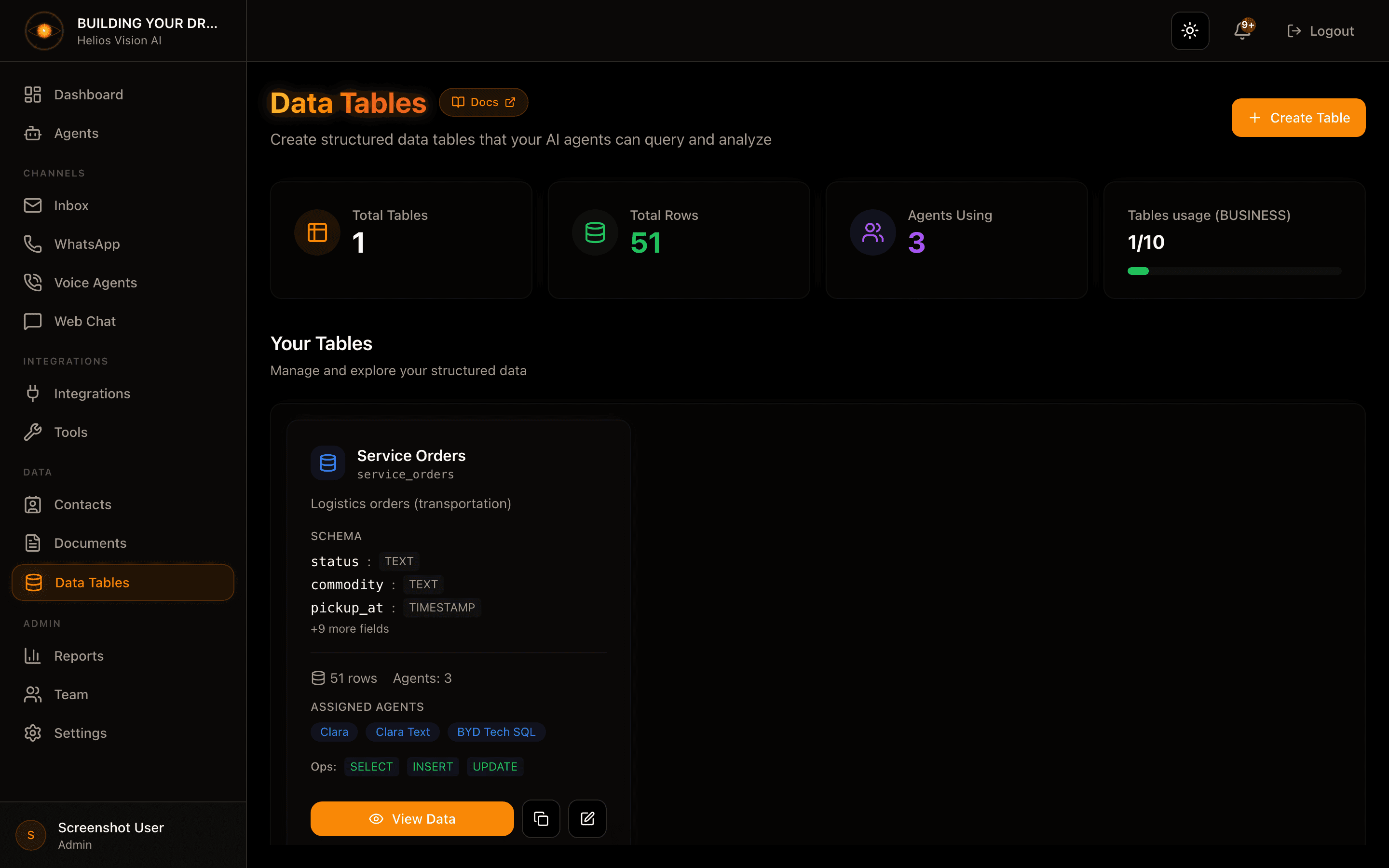
Manage tables from the list
Each table card offers quick actions:
| Action | Description |
|---|---|
| Active switch | Suspend or reactivate the table. A suspended table keeps its data, can't be queried by agents, and does not count against your plan limit. |
| Edit Table | Open the edit form (also the place to delete the table). |
| Duplicate table | Create a copy of the table's structure (schema and operations); rows are not copied. |
| View Data | Open the table detail page. |
The card also lists which agents are assigned to the table.
Editing the schema
When you change the schema in Edit Table, existing rows are migrated automatically to match, with a confirmation summary first:
- Rename a field — values move to the new field name.
- Change a field's type — values that can't be converted are kept as-is.
- Remove a field — its data is lost.
Deleting a table (from the Danger Zone in Edit Table, or Delete Table) removes all rows and cannot be undone.
Assign tables to agents
For an agent to answer questions about a table:
- Go to Agents and select the agent.
- Enable data access in the agent's tools.
- Select the tables the agent may use.
- Save changes.
The agent can then answer questions about those tables in chat, email or voice conversations.
Good practices
- Descriptive names: use clear display names and field names so agents understand the data.
- Field names in English: keep internal field names in English for best compatibility (use the friendly label for display).
- Limit operations: only enable INSERT / UPDATE / DELETE when an agent genuinely needs to write; keep read-only tables on SELECT.
- Useful descriptions: add a description that explains what the table is for.
- Correct types: use NUMBER for numeric values and DATE / TIMESTAMP for dates so aggregates and filters work.
- Suspend instead of delete: turn off the Active switch to pause a table without losing its data.
Common notes
"No results found"
- Confirm the table has data.
- Check the spelling of the values you searched for.
- Try a simpler question first.
"We couldn't run that query"
- Rephrase the question; grouping by category (GROUP BY) is not supported yet.
- Make sure the fields you mention exist in the schema.
The agent does not answer about the table
- Confirm the table is assigned to the agent.
- Confirm the agent has data access enabled.
- Confirm the table is Active and its Allowed Operations include SELECT.
CSV rows were skipped
- A header row is required, and files are limited to 5 MB and 50,000 rows.
- Check that column mappings are correct and that NUMBER / BOOLEAN columns contain valid values.
Screenshot
Related
- AI Agents - Agent configuration
- Tools & Functions - Available tools