
Inbox (Email)
Connect Gmail or Outlook, let AI draft replies, and approve them with human-in-the-loop review.
Objective
Manage inbound and outbound email with AI assistance and human approval (human-in-the-loop). An assigned agent analyzes each incoming email, drafts a reply, categorizes it, and either sends automatically or holds it for your review.
Access
Sidebar -> Email
Routes:
- /app/{tenant}/inbox (connect accounts / settings entry)
- /app/{tenant}/inbox/all (all accounts)
- /app/{tenant}/inbox/{credentialId} (one account)
- /app/{tenant}/inbox/message/{id} (email details)
If accounts already exist, /app/{tenant}/inbox redirects to /app/{tenant}/inbox/all.
Roles
- owner, admin: full access — connect, configure, verify, test, and delete accounts, plus review and send replies.
- agent: review, draft, reassign, and Approve & Send replies. Cannot connect, configure, or delete accounts.
- viewer: no access (the Email module is hidden).
Prerequisites
- Early-access module: Email is rolled out gradually. If you do not see Email in the sidebar, contact support to request access.
- Your Helios account email must be verified. Connecting a mailbox is blocked until you verify it.
- At least one active agent with the Email channel enabled. If none exists, a prompt sends you to the Agents module.
- A connected mailbox: Gmail / Google Workspace or Outlook / Microsoft 365 (both via OAuth).
- AI features (drafts, summaries, sentiment, categorization) require model access — through your plan's included credits or your own provider key configured in Integrations. Processed email counts toward your plan quota; when the limit is reached, emails show the Quota Exceeded status.
Connect an email account
In Email, click Connect Email Account (first account) or Connect New Account. A dialog opens with the available providers.
If you have no eligible agent, an Agent required dialog appears — create an agent with the Email / Inbox channel enabled first. If your account email is unverified, you are prompted to verify it before continuing.
Gmail (OAuth)
- In the dialog, find Gmail / Google Workspace.
- Choose an agent in the Select agent dropdown.
- Click Connect and complete Google's consent screen.
- You return to Email with the mailbox connected.
Outlook (OAuth)
- In the dialog, find Outlook / Microsoft 365.
- Choose an agent in the Select agent dropdown.
- Click Connect and complete Microsoft's consent screen.
- You return to Email with the mailbox connected. Outlook syncs the inbox, sent items, and categories.
Manage connected accounts
Each connected account appears as a row with a toggle, badges, and a menu.
- Active / Inactive toggle. If the account's linked agent is inactive, turning the account on opens a Choose an active agent to reactivate dialog so you can swap to an active agent.
- Open mailbox: opens this account's inbox list.
- Menu — Verify: tests connectivity (shown while the account is unverified). Test email: sends a test message to confirm delivery. Edit: opens Email Account Configuration.
- The expanded row shows the assigned agent and the last sync time or a friendly sync status.
Account badges:
| Badge | Meaning |
|---|---|
| Verified / Unverified | Whether connectivity has been confirmed |
| AI | The agent generates draft replies for this account |
| Auto-reply | The agent sends replies automatically |
| Solo / Team | Whether a single agent or a team responds |
| Linked agent inactive | The assigned agent is inactive; swap to an active one to activate |
Raw provider errors are never shown. Sync problems appear as plain-language statuses, for example "Connection expired. Reconnect this account."
Email Account Configuration (per account)
Quick route: Email -> account menu -> Edit.
Account Configuration
| Field | Required | Notes |
|---|---|---|
| Assigned Agent | Yes | A single agent (Solo) or a Team when teams are enabled. Only active agents with the Email channel are listed. |
| Sender Name | No | Used as the From name. If empty, the agent's name is used. |
| Account Signature | No | Applied when sending; draft responses stay clean. Supports the variables below. |
Available signature variables:
- {sender_name}
- {agent_name}
- {tenant_name}
- {account_email}
- {sender_role}
AI Response Settings
These options appear once an agent is assigned.
- Generate AI Responses: the agent drafts suggested replies. Summaries, sentiment, and categorization always run when an agent is assigned, even if this is off.
- Send Automatically (shown when Generate AI Responses is on): replies are sent without waiting for approval. When off, all replies remain drafts. Auto-replies to no-reply / system senders are always blocked.
The following appear when Send Automatically is on:
- Agent Signature (optional): a signature applied when auto-sending.
- Auto-Reply Language: Auto (mirror the sender's language) or a specific language.
- Require Manual Review For: High and Urgent — emails at these priorities always wait for your approval before sending.
- Auto-Reply Guard (see below).
Auto-Reply Guard
Controls which senders receive automatic replies. System and no-reply senders are blocked by default.
| Control | What it does |
|---|---|
| Always blocked tokens / domains | Built-in no-reply and system patterns that are always blocked (shown for reference) |
| Additional blocked sender tokens | Block senders whose address contains a token (e.g. invoice, billing). Token-based, not substring |
| Additional blocked domains | Block a domain and its subdomains |
| Allowed reply domains | If set, auto-replies only go to these domains |
| Header blocks | Toggle blocking on Auto-Submitted, Precedence (bulk / list / junk), X-Auto-Response-Suppress, and X-AutoReply / X-Autorespond |
| Additional blocked headers | Block when a given header is present (e.g. List-Unsubscribe) |
Email Categorization
These options appear once an agent is assigned.
- Current categories are listed. Manage Categories opens the Categories settings.
- Allow agent to suggest new categories automatically.
- Use the Other category when no clear match is found.
- Mailbox Label Sync: sync Helios categories to Gmail labels or Outlook categories (Gmail or Outlook only). Messages stay in the inbox unless you enable the archive option; archive availability depends on the provider.
Daily Summary Email
Sends a recurring summary of email activity. Configured once for your workspace.
| Field | Required | Notes |
|---|---|---|
| Enable Daily Summary | No | Turns the summary on |
| Send Time | Yes (if enabled) | HH:MM, in the selected timezone |
| Timezone | Yes (if enabled) | Choose from the list |
| Report sections | No | Choose which sections the summary includes |
Delete an account
In Email Account Configuration, the Danger Zone -> Delete email account removes the configuration and disconnects the mailbox. This cannot be undone. (owner / admin only.)
Inbox (email list)
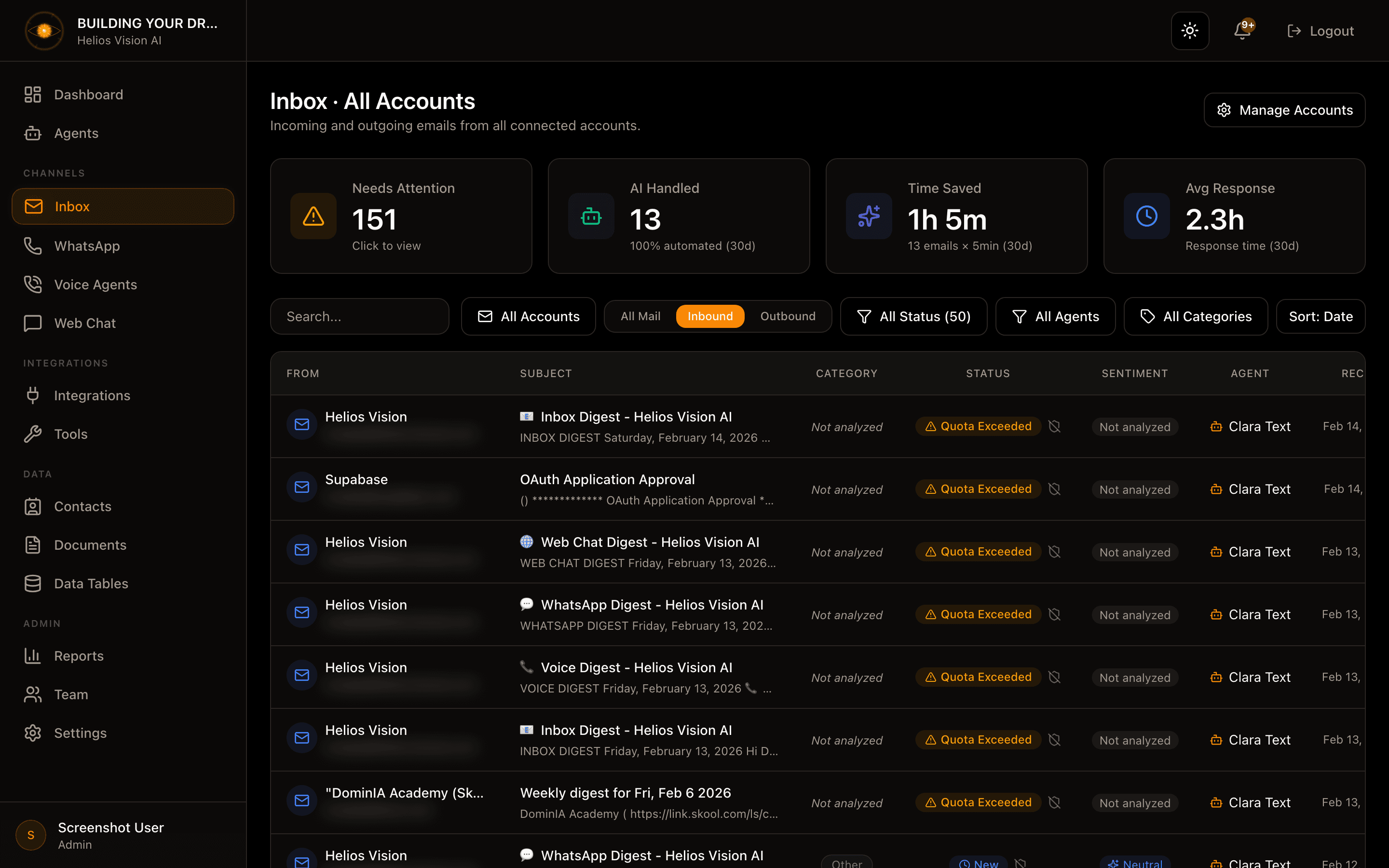
Available as All Accounts (/app/{tenant}/inbox/all) and per account (/app/{tenant}/inbox/{credentialId}). Both show summary stats and a filterable list.
Filters:
- Search: sender, subject, agent, category, and more.
- Account: switch account or view All Accounts.
- Direction: All Mail / Inbound / Outbound.
- Status: All Status / Pending or Processing / Needs Review / Approved / Sent / Reviewed / Failed / Quota Exceeded.
- Agent: All Agents / Unassigned / a specific agent.
- Category: All Categories / Uncategorized / Not analyzed / a specific category.
- Sort: Date or Category.
- Refresh: single-account view only; pulls the latest messages from the provider.
Columns: From / To, Subject (with a short preview), Category, Status, Sentiment, Agent, and Date. A shield icon marks emails where the auto-reply guard blocked a reply. A banner appears when emails are blocked by the plan limit. Use Load more to page through results.
Status values
| Status | Meaning |
|---|---|
| New / Pending | Received, awaiting analysis or review |
| Processing | Being analyzed by the agent |
| Needs Review | A draft is ready for your approval |
| Approved | Approved and queued to send |
| Sending | Being sent |
| Sent | Delivered |
| Reviewed | Read or handled; no reply required |
| Failed | Processing or sending failed |
| Quota Exceeded | Plan limit reached; upgrade or wait for the next cycle |
Failed and unresolved emails are automatically removed after 30 days.
Email details
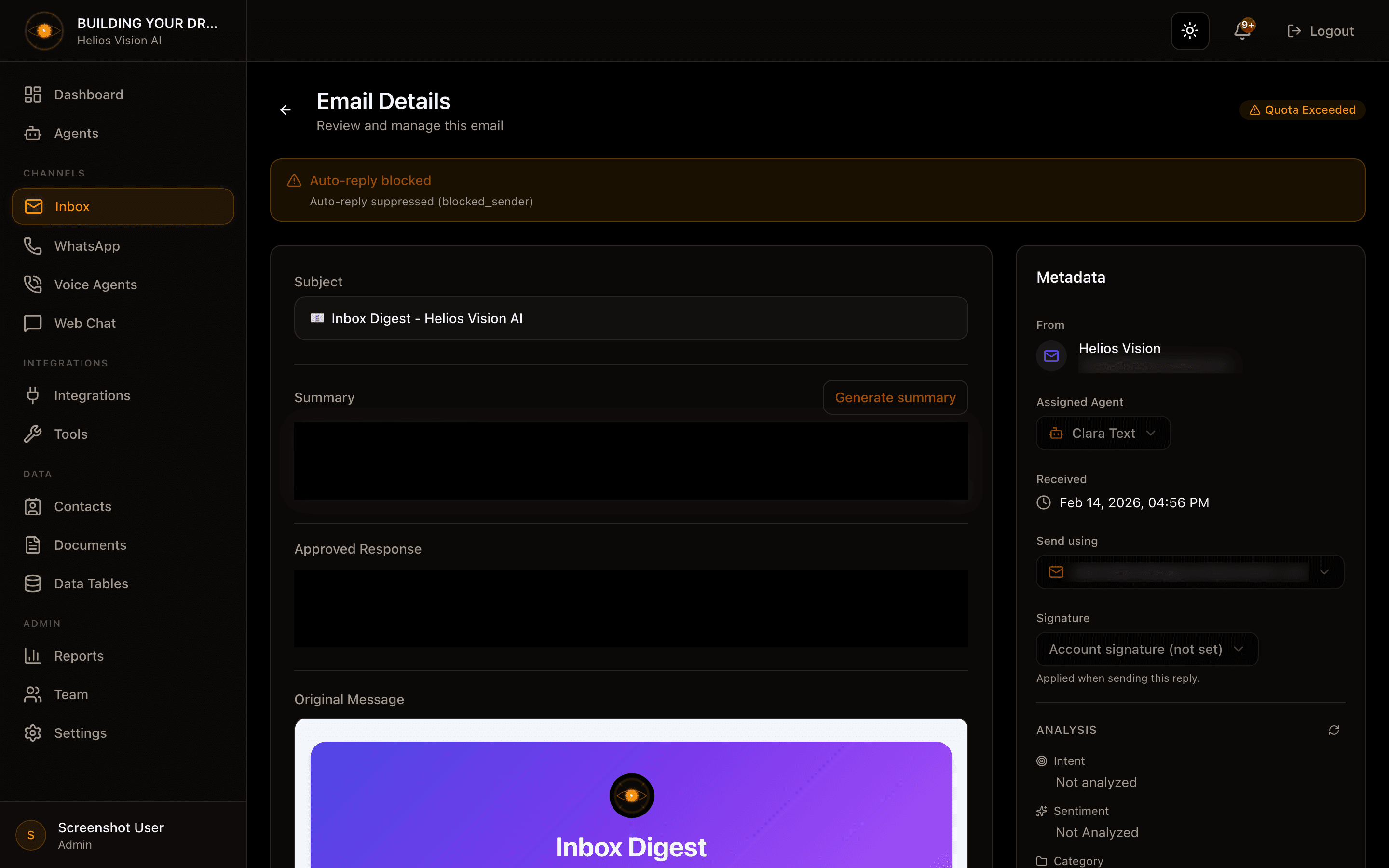
Route: /app/{tenant}/inbox/message/{id}. Opening an inbound email marks it as reviewed.
Inbound layout:
- Header: priority and status badges, plus a delivery or auto-reply-blocked notice when relevant.
- Subject.
- Summary: Generate or Refresh a short summary to speed up review.
- AI-Generated Response (editable): edit the draft, then Regenerate Response, No Reply Needed, or Approve & Send.
- Original Message: the incoming email, rendered safely.
- Sidebar Metadata: From; Assigned Agent (reassign via dropdown); Received; Send using (choose which connected account sends the reply); Signature (My / Agent / Account / None); Analysis (Intent, Sentiment, Category, Tags) with a refresh action.
Outbound emails open in a read-only Sent Email view with Subject, From, To, Sent, Agent, the message body, and View full thread.
Important notes:
- To send, the response field must not be empty.
- If auto-reply is blocked for the sender, AI generation is disabled and you write a manual reply; a confirmation dialog appears before sending.
- Approved, sent, reviewed, failed, and quota-exceeded emails are read-only.
Good practices
- Assign an active agent to each account before turning on AI responses.
- Keep clear categories so classification and label sync stay useful.
- Start with drafts (Send Automatically off) and enable auto-send once you trust the replies; keep High and Urgent under manual review.
- Use the Auto-Reply Guard to avoid replying to no-reply, billing, or bulk senders.
- Write signatures with variables so every account and agent stays consistent.
Common errors
- Connection expired: reconnect the account (re-run the Gmail or Outlook OAuth from the account).
- Verify fails: disconnect and reconnect the mailbox via OAuth.
- Linked agent inactive: the account only sends a polite unavailable auto-reply until you swap to an active agent through the reactivation dialog.
- No AI response appears: confirm an agent is assigned, Generate AI Responses is on, and model access is available.
- Quota Exceeded: the plan limit was reached; upgrade your plan or wait for the next billing cycle.