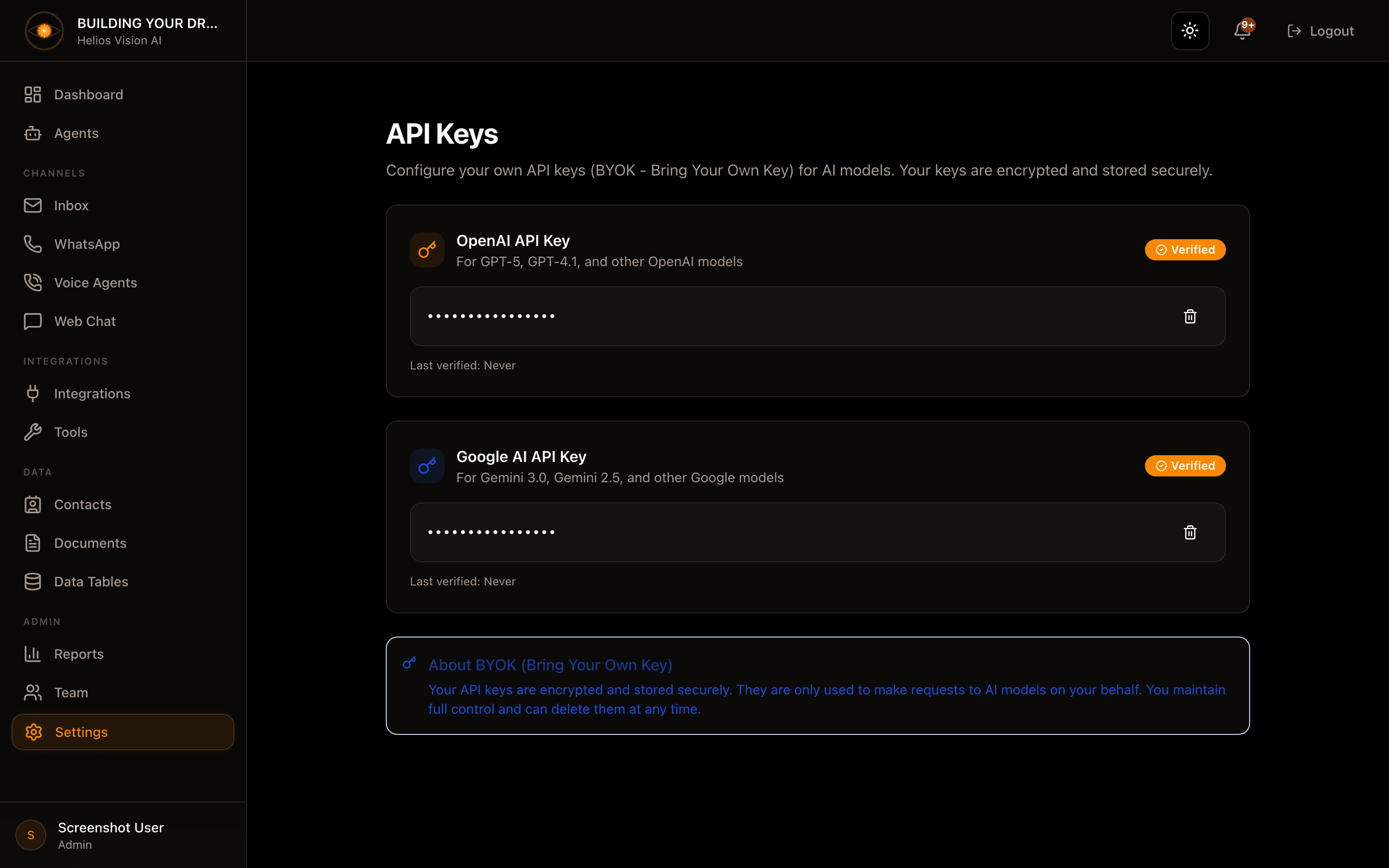
API Keys (BYOK)
Bring your own key (BYOK): save your own OpenAI and Google AI keys, encrypted, so your AI agents run on your provider accounts.
Objective
Bring your own key (BYOK): save your own OpenAI and Google AI API keys so your AI agents run on your provider accounts. Keys are verified with the provider before they are saved, stored encrypted, and shown masked. You keep full control and can delete a key at any time.
Access
Sidebar -> Settings -> API Keys Route: /app/{tenant}/settings/api-keys
You can also land here from in-app prompts — when an AI feature needs a key that is not connected yet, it links you straight to this page.
Roles
- owner, admin
Prerequisites
- A verified email. Accounts still pending verification are asked to confirm their email before an API key can be saved or deleted.
- An account with the provider you want to use (OpenAI and/or Google AI), and a key generated there.
How this relates to managed AI credits
Whether you need a key here depends on your AI Engine setting (Settings -> AI Engine):
- Managed (paid plans) — the platform runs the AI for you on included AI credits. You do not need to save your own key.
- Advanced (your own API key) and the free plan — your agents run on the keys you save here. Without a key, AI replies cannot be generated.
A key saved on this page is the same key your agents use at runtime, and it is shared with the Integrations page, which manages the same OpenAI and Google AI credentials alongside other providers.
Save an API key
- In the provider card (OpenAI or Google AI), paste your key into the API Key field.
- Press Save & Verify.
- The key is checked live with the provider. If it is valid, it is saved and the card shows a Verified badge; if the provider rejects it, it is not saved.
| Provider | Field | Mandatory | Format | Note |
|---|---|---|---|---|
| OpenAI | API Key | Yes | sk-... | For GPT-5, GPT-4.1, and other OpenAI models. Saved encrypted. |
| Google AI | API Key | Yes | AIza... | For Gemini 3.0, Gemini 2.5, and other Google models. Saved encrypted. |
Once a key is saved, the card shows the masked key (the first 8 and last 4 characters, the rest hidden), a Verified / Unverified status badge, and a Last verified timestamp.
Replace a key
There is one key slot per provider, and no edit field while a key is stored. To change a key, delete the current one first, then save the new one.
Delete a key
- On the stored key, press the trash icon.
- Confirm in the dialog.
Deleting a key stops your agents from using that provider until you add a new one (unless your workspace is on Managed AI credits).
Other providers
This page covers OpenAI and Google AI only. Voice and search providers live on the Integrations page:
- ElevenLabs and Deepgram — voice; they take effect once you select that provider in Voice Agents.
- Web Search and Twilio — also connected from Integrations.
Good practices
- Use a key from a dedicated project or account, separate from your test keys.
- Set spending limits and alerts in your provider's dashboard.
- Keep your provider account funded — a valid key with no funds can still be saved, but AI features may fail until you top up.
- Rotate keys periodically: delete the old one here and save the new one.
Common notes
- Please enter an API key — the field was empty when you pressed Save & Verify.
- Invalid API key — the provider rejected the key (wrong, revoked, or lacking the right permission); it was not saved. Fix it and try again.
- Verify your email first — accounts pending verification cannot save or delete keys until they confirm their email.
Screenshot