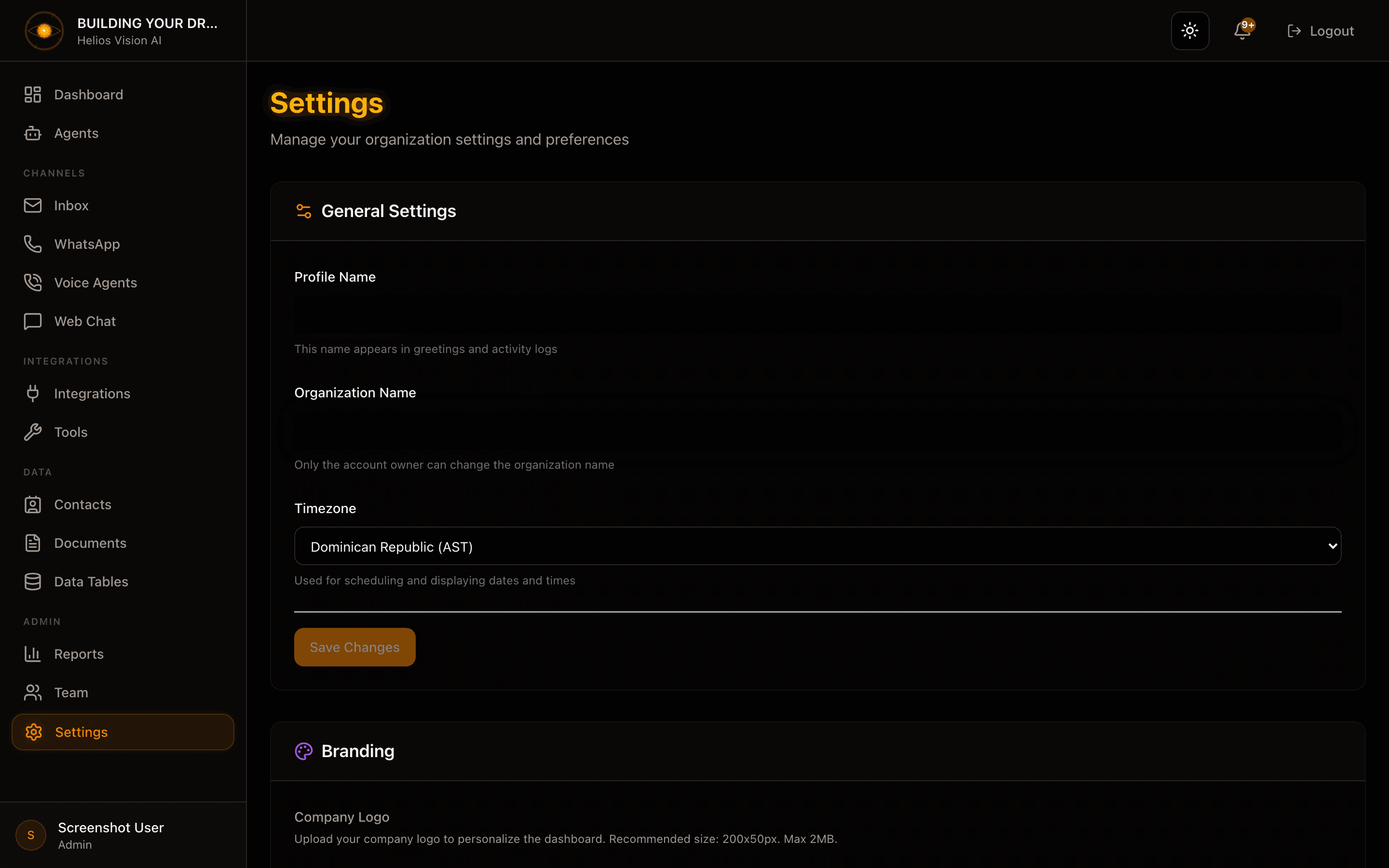
Settings — General
Configure your workspace: profile name, organization name, timezone, interface language, AI engine, branding, plan usage and account deactivation.
Objective
Manage your organization's general settings and preferences: your profile name, the organization name, timezone, interface language, the AI engine, branding, and a read-only view of your plan usage. This page also groups shortcuts to Daily Reports and Legal & Compliance, and the account Danger Zone.
Access
Sidebar -> Settings
Route: /app/{tenant}/settings
From this page you can also open related settings: Plan & Billing (/app/{tenant}/settings/billing), Legal & Compliance (/app/{tenant}/settings/legal), and Daily Reports (/app/{tenant}/reports/scheduled).
Roles
- owner, admin
Non-admin members see an "Access denied" message. Every setting below is available to both owner and admin, with one exception: only the owner can rename the organization.
Prerequisites
- You must be signed in as owner or admin.
- Branding (logo upload) requires the Business plan or higher.
- The Managed AI engine requires a paid plan. On the free plan the AI engine uses your own OpenAI API key.
General Settings
Edit the core fields, then press Save Changes. The button stays disabled until you change something; while there are pending edits you'll see "You have unsaved changes".
| Field | Required | Who can edit | Notes |
|---|---|---|---|
| Profile Name | Yes | Your own name (any admin/owner) | Appears in greetings and activity logs |
| Organization Name | Yes | Owner only | Displayed across the platform. Disabled for admins |
| Timezone | Yes | owner, admin | Used for scheduling and displaying dates and times |
Timezone is a curated dropdown (UTC plus common zones across the Americas, Europe, Asia and the Pacific — for example America/New_York, America/Bogota, America/Mexico_City, Europe/Madrid, Asia/Tokyo).
Email Address
Change the email you sign in with, in the same General Settings card.
- Press Change Email.
- Enter your New Email Address and your Current Password.
- Press Update Email.
A confirmation link is sent to the new address; the change completes only after you open that link. Your current password is required to confirm the change.
Language
A separate panel controls the interface language for your account.
| Option | Value |
|---|---|
| Interface language | English or Español |
The change applies immediately and is per user, so each teammate can pick their own language independently.
AI Engine
Choose how this account powers its AI agents. Two options are presented as a pair:
| Option | What it does | Availability |
|---|---|---|
| Managed (Recommended) | Helios Vision covers the AI model cost. AI works instantly with no API key. Usage counts toward your plan's included monthly credits | Paid plans |
| Advanced: your own API key | Bring your own OpenAI key. Usage is unlimited at your own cost, outside the platform's included credits | Paid plans; the only option on the free plan |
When Advanced is selected, use the "Manage your API key in Integrations" link to add or update the key. If your plan does not include an option, it appears locked with an upgrade hint.
Branding
Available on the Business plan and above. On lower plans the section is shown locked with a "Business Plan" badge that links to billing.
Upload a Company Logo that replaces the Helios Vision logo in the sidebar for your team.
| Setting | Value |
|---|---|
| Formats | PNG, JPG, SVG, WebP |
| Max size | 2 MB |
| Recommended size | 200x50 px |
Use Change Logo to replace it or Remove Logo to clear it.
Plan & Billing
A read-only summary of your subscription: Current Plan, status (Active), Monthly Retainer (a dollar amount or Custom for enterprise), and the current Billing Period. Two buttons open Stripe:
- Manage Billing — invoices, payment methods, billing address, and cancellation.
- Change Plan — the upgrade/downgrade flow.
Full details live in Billing & Usage.
Usage & Limits
A grid of used / limit meters for every metered resource. A metric with a limit of 0 is not part of your plan and appears locked; clicking it opens billing. When an add-on adds capacity, the card notes "Includes +N from active add-on".
| Resource | Notes |
|---|---|
| Team Members | Active users |
| AI Agents | Active agents |
| AI Messages (Monthly) | Shown only when your plan caps monthly messages |
| WebChat Agents | Active web chat widgets |
| WhatsApp Agent | Connected numbers |
| Voice Agent | Active voice agents |
| Instagram Accounts | Connected accounts |
| Messenger Accounts | Connected accounts |
| Telegram Accounts | Connected accounts |
| TikTok Accounts | Connected accounts |
| Campaign Messages | Messages sent this billing cycle |
| Connected Email Accounts | Active email accounts |
| Data Tables | Active tables |
| Scheduled Tasks | Active tasks |
| Webhooks | Configured webhooks |
| Documents | Uploaded documents |
Daily Reports
A shortcut that opens Reports -> Scheduled. Use it to configure automatic email summaries of activity across Inbox, Voice, WhatsApp and Web Chat.
Legal & Compliance
A shortcut to your legal settings, where you configure the Privacy Notice, Terms of Service, and Data Deletion URLs used when connecting your WhatsApp number or other channels.
Danger Zone
Deactivate Account archives all data and removes access for every team member. You confirm in a dialog that names your workspace.
Deactivation is reversible within 30 days by contacting support. Today the button notifies our team rather than deactivating instantly — the automated workflow is on the way.
Good practices
- Set the Timezone before configuring scheduled reports or tasks; it drives every date and time shown.
- Keep organization renaming with the owner and use admin accounts for day-to-day work.
- On paid plans, keep the AI Engine on Managed unless you specifically need your own key.
- If a module blocks an action because of quota, check Usage & Limits first.
- Keep your logo within 2 MB and near 200x50 px for the cleanest sidebar fit.
Common notes
- If Save Changes is disabled, there are no pending changes.
- Admins cannot edit Organization Name; the field is disabled with an explanatory note.
- Changing your email needs your current password and is confirmed by a link sent to the new address.
- Deactivation is not instant today; it notifies our team and can be reversed within 30 days through support.
Screenshot