
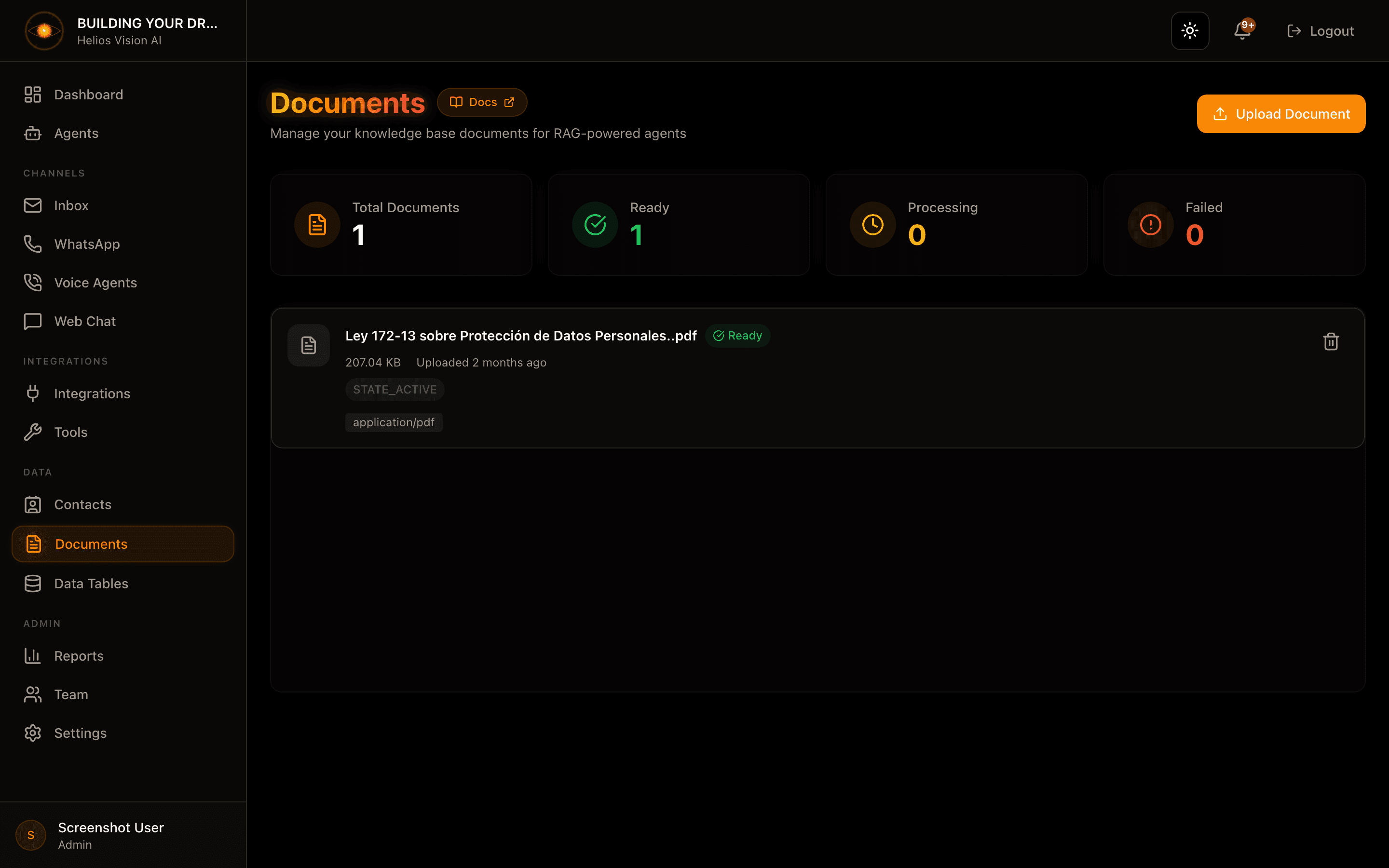
Documents
Upload documents to your AI knowledge base so agents answer from your own content (RAG).
Objective
Build and manage your AI knowledge base. Upload documents so your agents answer questions from your own content using RAG (Retrieval Augmented Generation). Each document is indexed into your Google File Search knowledge base, can be enriched with an AI overview, and can be assigned to one or more agents.
Access
Sidebar -> Documents Route: /app/{tenant}/documents
Roles
- owner, admin, agent — open the module, upload documents, delete them, retry failed uploads, and generate AI overviews.
- owner, admin — assign or unassign documents to agents from this page. Agents see assignments read-only.
- viewer — no access to this module.
Prerequisites
- A Google AI API key connected in Integrations (required). Until it is connected, a banner appears and Upload Document opens a dialog that links to Integrations.
- A verified email address. Upload is blocked until your email is verified on plans that require it.
- An active subscription. Upload is blocked while the subscription is restricted or suspended.
- Available document slots in your plan (see Plans and limits).
Plans and limits
| Limit | How it works |
|---|---|
| Document count | Your plan sets the maximum number of documents. When you reach it, Upload Document shows an upgrade prompt. |
| File size | The upload dialog accepts files up to 10MB. Your plan may set a smaller per-file size limit; the absolute platform maximum is 100MB per file. |
Upload a document
Steps:
- Press Upload Document.
- Drag a file onto the drop area, or click to browse.
- Complete the fields.
- (Optional) Open Advanced settings to override chunking.
- Press Upload Document.
Fields:
| Field | Required | Notes |
|---|---|---|
| Document File | Yes | The file to index. Supported types below. Up to 10MB in the dialog. |
| Display Name | No | Defaults to the file name. Shown in the list and searchable. |
| Description | No | Tells the agent when to rely on this document. The Suggest button fills a starter template. |
| Document Type | Yes | Selects the chunking preset (see Document types). Defaults to General. |
Supported file types:
- PDF, DOCX, XLSX, PPTX, TXT, MD, CSV, JSON, HTML, PNG, JPEG
The file content is validated against its real type on upload, not just the file extension. A renamed or corrupted file is rejected even if it claims a supported type.
After upload the document appears as Processing and is indexed in the background. AI enrichment runs automatically: a short summary is extracted for every document, and for documents typed as Legal a per-article index is also built.
Document types (chunking presets)
The Document Type controls how the file is split into chunks for search. Choose the one that best matches the content.
| Type | Chunk size | Overlap | Best for |
|---|---|---|---|
| General | 600 tokens | 100 | Most natural-language documents (default). |
| Legal / Regulatory | 800 tokens | 150 | Laws, contracts, and regulations. Keeps full numbered articles together and enables verbatim article lookup. |
| Technical / Code | 1024 tokens | 200 | Code, tables, procedures, spreadsheets, CSV, and JSON. |
| FAQ / Q&A | 400 tokens | 50 | Question-and-answer content. |
Advanced chunking settings
Open Advanced settings in the upload dialog to override the preset for technical use cases. When Advanced is on, its values are used instead of the Document Type preset.
| Setting | Range | Notes |
|---|---|---|
| Chunk size | 200 to 2000 tokens | Larger chunks preserve more context but match less precisely. Most documents work well between 400 and 1000 tokens. |
| Overlap | 0 to 400 tokens | Tokens shared between consecutive chunks. Capped at 25% of the chunk size. |
Custom values are clamped to safe limits before processing.
Processing and statuses
Each document shows a status:
| Status | Meaning |
|---|---|
| Processing | Being indexed into your knowledge base. The list refreshes automatically. |
| Ready | Indexed and available to assigned agents. |
| Failed | Indexing did not complete. Use retry or delete. |
Every document also shows its knowledge base store state: Ready, Processing, Failed, or No File in Store.
A document stuck in Processing for more than 2 minutes without being indexed is automatically marked Failed so you can act on it.
For a Failed (or stuck Processing) document, the retry action lets you re-select the file and run indexing again. It re-applies the same checks as a new upload (Google AI key, email verification, file type, and size).
AI overview (enrichment)
An AI overview is a short summary your agent uses to describe what a document is about. For documents typed as Legal, a per-article index is also stored so the agent can quote any article verbatim by number.
- Generate or regenerate the overview from the document row (Generate AI overview) or from the document detail view. The control appears once the document is Ready.
- The job runs in the background. You get a notification when it finishes, even if you navigate away.
- Cost on your Google AI key: about $0.005 for the summary on short documents, up to about $0.10 when both the summary and the legal article index run on long legal codes.
- Regenerate after the document content changes, or if a previous extraction missed something.
Document details
Click a document name to open its detail view. It shows:
- File info: size, file type, uploaded date, and knowledge base store state.
- AI overview: title, document type, total articles, total chapters, signing authority, signing date, jurisdiction, and summary (when extracted).
- Assigned agents.
Original files are not downloadable. Helios indexes documents into your knowledge base for retrieval and does not keep a separate copy of the original file, and Google File Search does not expose a way to download it back out once indexed.
Assign documents to agents
Each document row and the detail view include an Assign agents control.
- Toggle an agent to add or remove the document from that agent's knowledge base.
- Assigning the first document to an agent turns its knowledge base (RAG) on; removing the last one turns it off.
- Only owners and admins can change assignments; agents see them read-only.
- You can also manage the same assignments per agent from the Agents editor's knowledge base section.
Search and filters
- Search box: matches file name, display name, description, and document type.
- Status pills: All, Ready, Processing, and Failed, each with a count.
- Type filter: All, General, Legal, Technical, and FAQ.
- Stat chips above the list show Total and Ready, plus Processing and Failed when any exist.
Delete a document
Press the delete icon on a document row and confirm. This permanently removes the document from your knowledge base and from any agents it was assigned to. This action cannot be undone.
Good practices
- Give each document a clear Display Name.
- Write a Description so the agent knows when to use the document.
- Pick the right Document Type. Use Legal for laws and contracts to enable verbatim article lookup.
- Split very long documents by topic.
- Generate the AI overview so agents can describe documents at a glance.
Common errors
| Message or situation | Cause | Fix |
|---|---|---|
| Google AI key not connected | No Google AI API key configured | Connect it in Integrations |
| Please verify your email | Email not yet verified | Verify your email, then retry |
| Invalid file type | Unsupported type, or the extension was changed | Re-export to a supported format |
| The file content does not match its declared type | Extension changed, or file corrupted | Re-export the file and try again |
| File size exceeds limit | Over the dialog limit (10MB) or your plan's size limit | Use a smaller file or upgrade |
| Document Limit Reached | Plan document limit reached | Upgrade your plan |
| Failed status | Indexing failed or timed out | Use retry to re-upload, or delete |
| AI overview could not be generated | The model returned no usable response (very short or malformed document, or not yet indexed) | Wait until Ready and try again |
Screenshot
Related
- AI Agents (RAG)
- Integrations (Google AI API key)