
Voice Agents
Give an AI agent a phone number so it answers real calls, then review transcripts, summaries, sentiment and recordings for every call.
Objective
Turn an existing AI agent into a phone agent that answers real inbound calls. A voice agent links a base agent to a phone number, a language, a synthetic voice, and call behaviour (analytics, call termination, transfer to a human). Every call is logged with its status, duration, transcript, AI summary, sentiment and recording so you can review what happened.
You bring the phone number one of two ways: a Helios number (bought inside the app, fully managed) or your own Twilio number (Bring Your Own). Either way, the agent starts answering as soon as it is active and the number points at Helios.
Access
Sidebar -> Telephony -> Voice Agents Route: /app/{tenant}/voice-agents
Related routes:
- /app/{tenant}/voice-agents/calls — full call history.
- /app/{tenant}/voice-agents/calls/{callId} — a single call's detail (transcript, summary, recording).
- /app/{tenant}/voice-agents/{id}/edit — edit an existing voice agent.
Roles
- owner, admin, agent — can view the page, create, edit, activate/deactivate and delete voice agents, and open call detail.
- Dismissing a call quality alert is restricted to owner and admin; agents see the alert but not the Dismiss action. This is re-checked server-side.
Prerequisites
- Voice on your plan. Voice is available on plans that include it, or through the Voice add-on. Without it the Create button opens an upgrade prompt instead of the wizard.
- A voice-agent slot. Your plan (plus any Voice Agent add-on) sets a maximum number of active voice agents. Each active voice agent counts toward that limit.
- A verified workspace email. Creating, editing or deleting a voice agent is blocked until your email is verified.
- An eligible base agent. In the Agents module you need an agent that is active, has the Voice channel enabled, and uses a realtime-compatible model. An agent already linked to another voice agent cannot be reused.
- OpenAI connected (in Integrations) — required for the AI engine, transcription and the call analytics (summary, sentiment). OpenAI is always used, even when you pick a different voice provider.
- A phone number — either a Helios number (see Phone Numbers) or your own Twilio account connected with a voice-capable number.
- Deepgram or ElevenLabs — only if you choose one of those as the voice output. Both are Bring-Your-Own-Key add-ons that bill on top of your OpenAI usage.
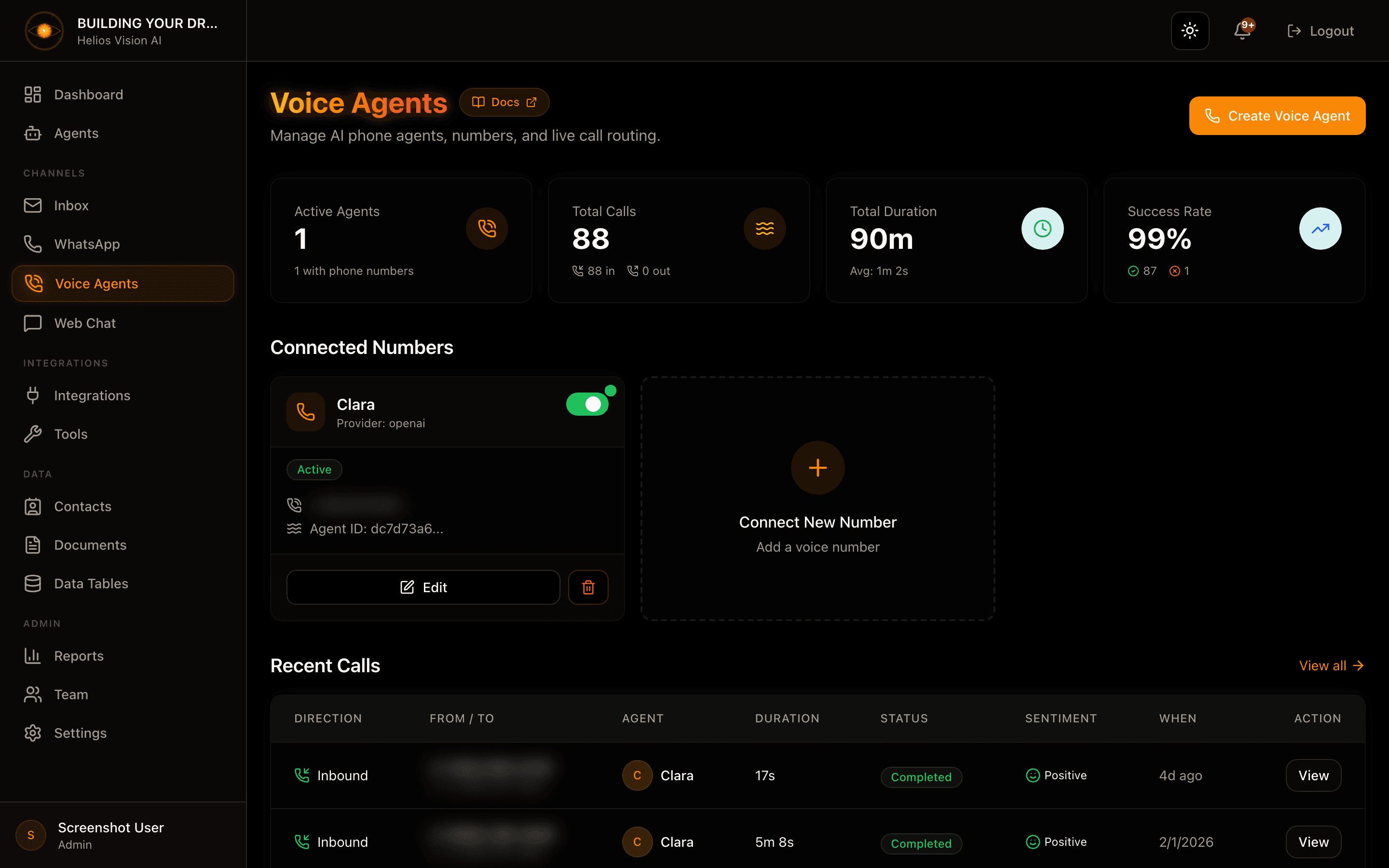
The Voice Agents dashboard
The main page opens on a set of all-time metrics, your connected numbers, a sentiment summary, and the most recent calls.
| Metric | Meaning |
|---|---|
| Active Agents | Active voice agents, with a sub-line showing how many have a phone number attached. |
| Total Calls | Lifetime calls, split into inbound and outbound. |
| Total Duration | Total call minutes, with the average call length below. |
| Success Rate | Percentage of calls that completed, with completed and failed counts. |
Below the metrics, Connected Numbers lists your voice agents as cards. You can search by agent name and sort by Newest, Oldest, Name A-Z, Name Z-A, or Active first. A dashed Add card creates a new voice agent.
The Sentiment panel appears once at least one call has been analysed, breaking calls into positive, neutral and negative. Recent Calls shows the latest calls with a link to the full history.
Create a voice agent
Click Create Voice Agent (or the Add card). The wizard has four steps; the header shows "Step X of 4".
Step 1: Select Base Agent
| Field | Mandatory | Format | Example | Note |
|---|---|---|---|---|
| Base Agent | Yes | selection | Support Agent | Only eligible agents appear: active, Voice channel enabled, realtime-compatible model, and not already linked to another voice agent. |
If the dropdown is empty, you have no eligible agent yet — enable the Voice channel on an active agent with a realtime model in the Agents module first.
Step 2: Voice Configuration
| Field | Mandatory | Format | Example | Note |
|---|---|---|---|---|
| Primary Language | Yes | selection | Spanish (Español) | The language the agent speaks. Choices: English, Spanish, Portuguese, French, German, Italian, Japanese, Korean, Chinese, Arabic, Hindi, Russian. |
| Initial Greeting | No | text | Hello! I'm your virtual assistant. How can I help you today? | Spoken when the call connects. Left blank, the agent opens on its own. |
| Voice Provider | Yes | selection | Standard (OpenAI) | See the provider table below. |
| Voice | Yes (OpenAI/Deepgram) | selection | Marin | Pick from the provider's catalog. |
| Voice ID | Yes (ElevenLabs) | selection or text | Rachel | Choose from your ElevenLabs account, or switch to manual entry and paste a Voice ID. |
Voice providers
| Provider | Label | Cost | Notes |
|---|---|---|---|
| OpenAI | Standard | OpenAI API pay-per-use | Uses OpenAI Realtime end-to-end for the AI engine, transcription and voice. No extra provider. |
| Deepgram | Enterprise | OpenAI + Deepgram | Keeps OpenAI for the AI engine and transcription; swaps the voice output to Deepgram Aura-2 (native 8kHz phone codec). Requires a Deepgram API key. |
| ElevenLabs | Premium | OpenAI + ElevenLabs | Keeps OpenAI for the AI engine and transcription; swaps the voice output to ElevenLabs. Top voice quality with cloning support. Requires an ElevenLabs API key. |
- OpenAI voices include Marin and Cedar (recommended), plus Sage, Ash and Verse.
- Deepgram offers Aura-2 voices across English, Spanish, Portuguese, French, German, Italian, Dutch and Japanese (for example Thalia, Asteria, Celeste, Diana).
- If you pick Deepgram or ElevenLabs and have not connected it yet, the step shows an inline panel to paste the API key (with a link to the provider console and the exact permissions/scopes to grant) before you can choose a voice.
Step 3: Behavior & Analytics
Call Analytics — each toggle is independent:
| Toggle | What it does | Requires |
|---|---|---|
| Transcription | Saves a written transcript of the call. | OpenAI connected |
| AI Summary | Generates a short summary after the call. | OpenAI connected |
| Sentiment Analysis | Labels each call positive, neutral or negative. | OpenAI connected |
| Call Recording | Stores an audio recording of the call. | Twilio (for your own number) — included automatically for Helios numbers |
If a required integration is missing, the step shows an inline panel to connect it (paste your OpenAI key, or your Twilio Account SID and Auth Token) without leaving the wizard.
Timezone — by default the agent inherits your workspace timezone. You can override it per agent by choosing an IANA timezone from the list (used so the agent states the correct local time on calls).
Quality Monitoring (AI-assisted) — when on, Helios reviews each call for off-topic drift or information leaks and raises a quality alert on the call. Turning it off disables that safety check.
Call Termination
| Field | Format | Note |
|---|---|---|
| Enable End Call | on/off | Lets the agent hang up on its own when the conversation is finished. |
| End Call Prompt | long text | Describes when the agent should end the call. Shown when End Call is on. |
| Inactivity Timeout | on/off + 5-60 seconds | Fallback that ends the call after a period of silence. |
Call Transfer — when on, the agent can hand a call to a human:
| Field | Format | Note |
|---|---|---|
| Destinations | name + phone number | Each destination needs a name and a valid E.164 number (for example +18094524630). Add as many as you need. |
| Transfer instructions | long text | Optional guidance on when and to whom the agent should transfer. |
Numbers are validated as you type; an invalid or half-filled destination blocks Next until fixed.
Step 4: Phone Number
Where you attach the number depends on what you own.
If you own one or more Helios numbers, a mode selector appears:
| Mode | Note |
|---|---|
| Helios number (Recommended) | Pick one of your platform numbers. Webhooks and telephony are configured automatically — nothing else to set up. |
| Your own Twilio number | Connect a Twilio account and point an existing number to Helios. |
If you have no Helios number, you go straight to the Twilio path, with a hint to buy a Helios number instead.
Twilio (Bring Your Own)
| Field | Mandatory | Format | Example | Note |
|---|---|---|---|---|
| Twilio Account SID | Yes (if not connected) | AC... | ACxxxx | Saved once, then reused. |
| Twilio Auth Token | Yes (if not connected) | token | ******** | Stored securely. |
| Phone Number | Yes | +E.164 | +15551234567 | Select a number from your Twilio account, or type one manually. |
After connecting Twilio you can pick a number from the dropdown or enter it manually. The step also shows the Voice webhook URL and Status callback URL to copy, with steps to paste them into your Twilio number configuration. Helios also tries to apply these webhooks for you when you save.
Phone Access Control (edit mode only) — once a voice agent exists, you can restrict which callers reach it using an allow list or block list.
Use Back to revise a step, Cancel to close, and Create Voice Agent on the last step to save.
Manage voice agents
Each card in Connected Numbers shows the agent name, the "Voice" type, its phone number and voice provider, plus these controls:
| Control | Action |
|---|---|
| Active / Inactive switch | Turns the agent on or off. An inactive agent stops answering. |
| Edit | Reopens the wizard (all four steps visible at once) to change any setting or rename the display name. |
| Repair (wrench) | Re-applies the Twilio webhooks to the number. Use this if inbound calls are not reaching the agent. Shown only when a number is attached. |
| Delete (More menu) | Removes the voice agent after a confirmation. Clears the Twilio webhooks on your own number so it stops routing to a deleted agent. |
Inactive linked agent — if the underlying base agent has been deactivated, the card shows an amber warning. Activating the voice agent then opens a dialog to reactivate or swap to another eligible agent, so calls never route to an inactive agent.
Renaming, activating, editing and deleting each re-check your plan, email verification and the agent's eligibility on the server.
Calls
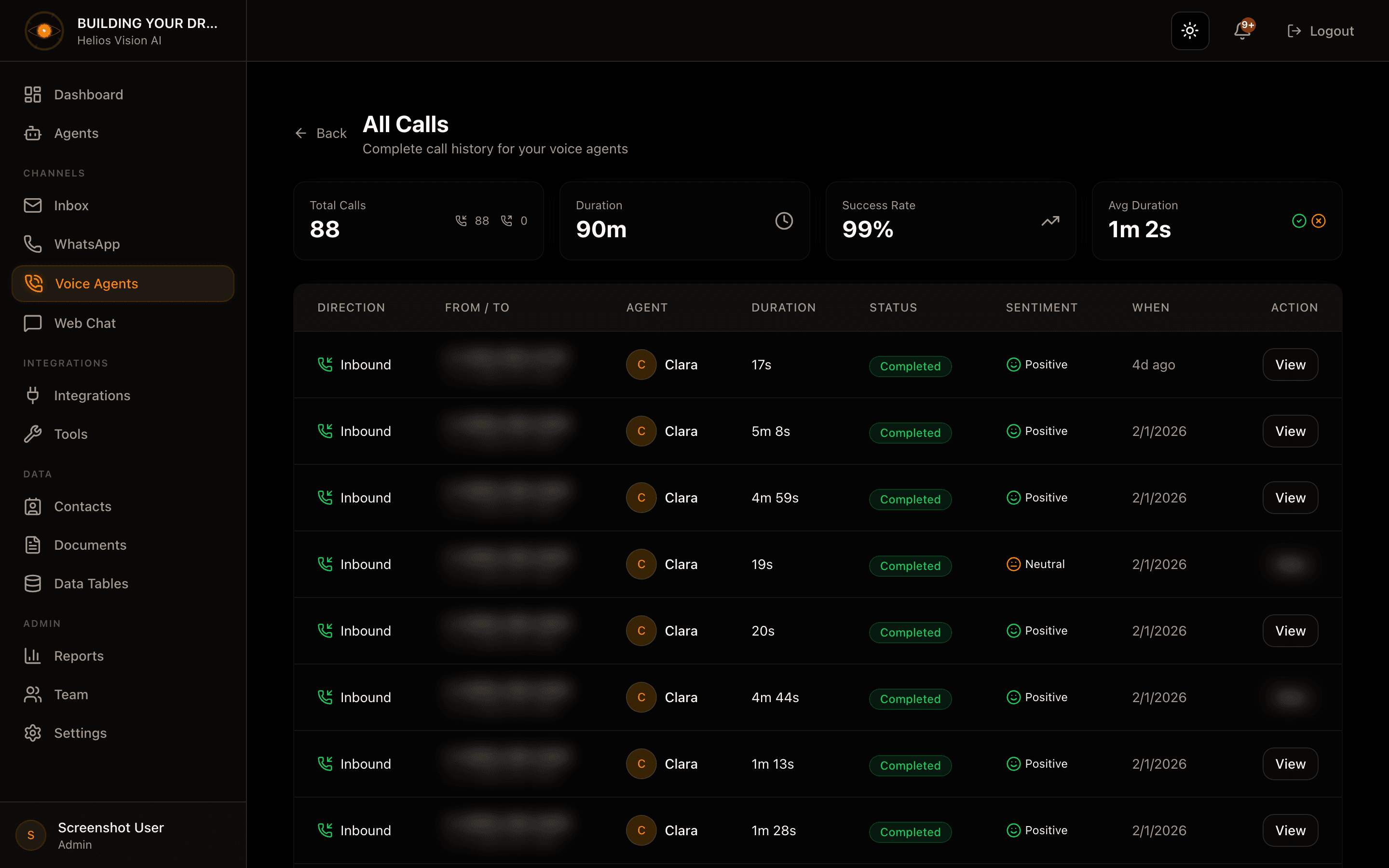
Call history (/app/{tenant}/voice-agents/calls) lists your calls with summary stats (Total, Duration, Success Rate, Average Duration). Each row shows:
| Column | Meaning |
|---|---|
| Direction | Inbound or outbound. |
| From / To | Caller and receiver numbers. |
| Agent | The voice agent that handled the call. |
| Duration | Call length. |
| Status | completed, in-progress, ringing, failed, busy, no-answer or canceled. A microphone icon marks calls with a recording; an amber chip marks calls with an active quality alert. |
| Sentiment | Positive, neutral or negative (when analysed). |
| When | How long ago the call started. |
Call detail
Open any call to see everything captured for it:
- A status pill and a call overview (From, To, Duration, Agent, Started/Ended time, Call ID).
- Quality alerts banner at the top when Quality Monitoring flagged the call. Owners and admins can Dismiss an alert; it stays on the record as history.
- Sentiment analysis, AI summary, and the full transcript (shown as a two-sided conversation) when those analytics are enabled.
- A recording player when Call Recording is on.
- A metadata block with any extra fields captured for the call.
Analytics fill in shortly after the call ends. A call still in progress, or one with analytics turned off, shows a "pending / no data" note instead.
Good practices
- Give the base agent a short, clear prompt — voice conversations reward brevity.
- Set a short Initial Greeting so callers know who they reached.
- Keep End Call on, and add an Inactivity Timeout as a backup so calls never hang open.
- Match the voice's language to the Primary Language (a Deepgram voice whose language differs from the agent is flagged as a likely mistake).
- For your own Twilio number, confirm both webhook URLs are pasted into Twilio; use the Repair button if calls are not connecting.
- Prefer a Helios number when you want recording and webhooks handled for you.
Common notes
- No base agent to pick — the agent is inactive, does not have the Voice channel enabled, uses a non-realtime model, or is already linked to another voice agent.
- Create opens an upgrade prompt — Voice is not on your plan, or you have reached your voice-agent limit; upgrade or add the Voice add-on.
- "Please verify your email…" — verify your workspace email, then retry.
- Analytics not filling in — OpenAI is not connected; connect it in the wizard or in Integrations.
- Recording is empty — Call Recording needs Twilio for your own number, or use a Helios number where it is included.
- "This phone number is already assigned…" — each number can be linked to only one active voice agent at a time.
- "Phone number must be in E.164 format" — enter the number with its country code and no spaces (for example +15551234567).
- Inbound calls not answered — check the agent is Active, the linked base agent is active, and (for your own Twilio number) run Repair to re-apply the webhooks.