
Billing & Usage
Review your plan, usage meters, AI credits, invoices, and channel add-ons, and change your subscription through Stripe.
Objective
See what your workspace is using against its plan limits, and manage the subscription: change plan, buy channel add-ons, top up AI credits, and open the Stripe billing portal for invoices, payment methods, and cancellation.
There are two related pages:
- Usage — a read-only snapshot of this month's consumption and your current plan.
- Billing & Subscription — the full subscription control panel (plans, add-ons, credits, invoices).
Access
Sidebar -> Settings -> Plan & Billing (the Upgrade Plan / View details button)
Routes:
- Billing: /app/{tenant}/settings/billing (also reachable at /app/{tenant}/billing, which redirects here)
- Usage: /app/{tenant}/usage
The Manage plan button on the Usage page opens the Billing page.
Roles
- owner, admin
Prerequisites
- A verified email. Accounts still pending verification cannot check out a plan, buy add-ons, or top up credits, and are asked to confirm their email first.
- A paid plan (an active Stripe customer) is required to buy add-ons, buy AI credit packs, and open the Stripe billing portal. Free workspaces choose a plan first.
- Some meters and sections appear only when the matching feature is active for your workspace (for example AI Credits, or channels that are still in gradual rollout). If a channel is not yet available to you, contact support.
Usage page
The Usage page (Usage & Billing) is a monthly snapshot. It does not change your subscription.
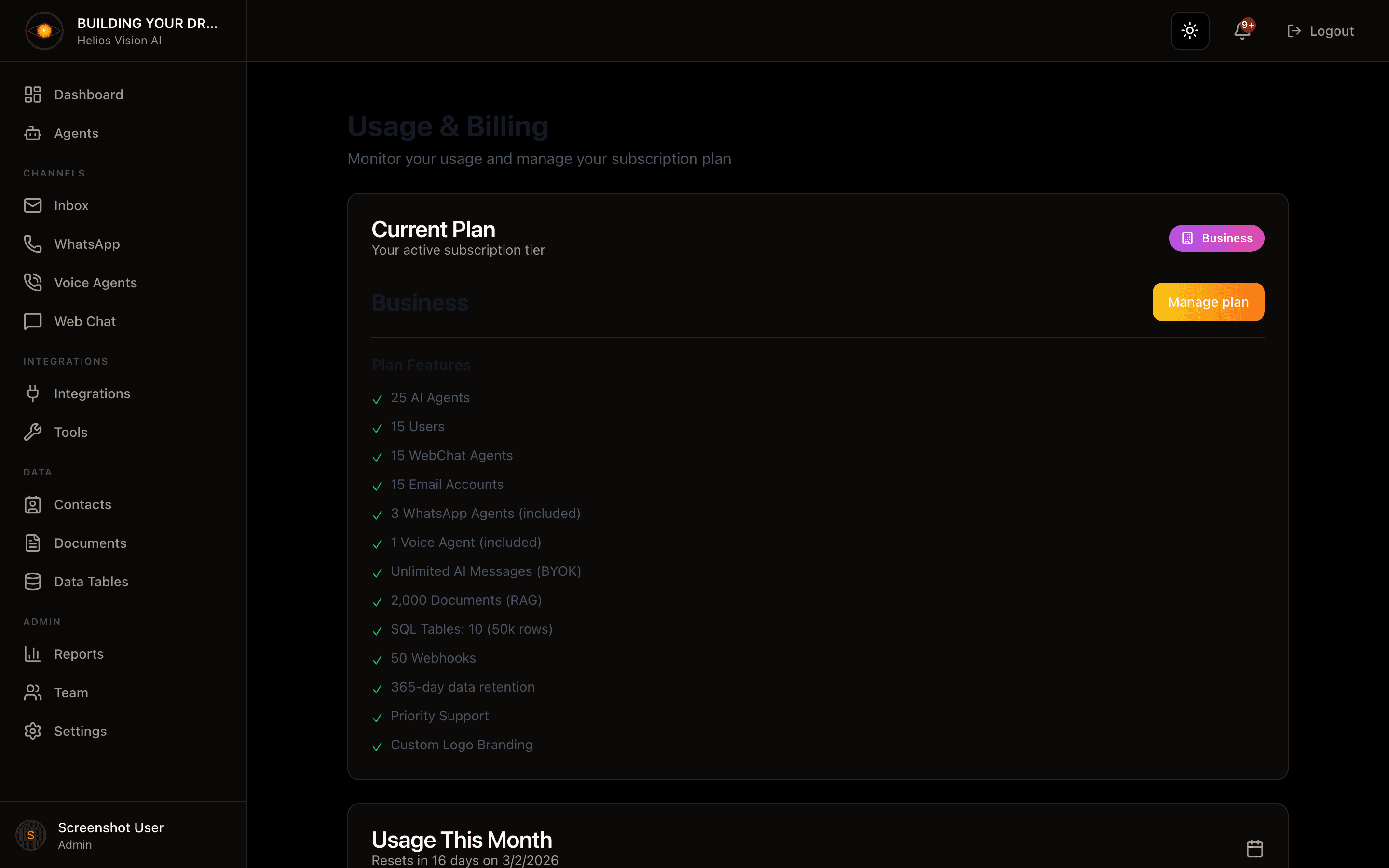
Current Plan
Shows your plan name and badge, a Manage plan button (opens Billing), and the Plan Features list included with your plan.
Usage This Month
A card headed Resets in N days on your renewal date, with a meter per resource:
| Meter | What it counts |
|---|---|
| AI Agents | Agents configured in your workspace |
| Users | Team members in your workspace |
| AI Messages | AI messages consumed this month against your monthly allowance |
| AI Credits | Managed AI credits spent this cycle (shown only when managed AI credits are active for your workspace) |
| Documents | Documents in your knowledge base |
Each meter shows current / limit. A limit of Unlimited hides the bar. The number turns amber at 80% of the limit and red at 100%.
Team activity
Specialist consultations made by your coordinators this month: the number of Specialist consultations, Tokens used, and Average duration. It reads zeros when there was no team activity this month.
Billing & Subscription page
The Billing page (Billing & Subscription) is where you change everything about your subscription. Its header carries a Back to Settings link and, once your workspace has a Stripe customer, two buttons:
| Button | Opens | Use it for |
|---|---|---|
| Manage Billing | Stripe billing portal (home) | Invoices, payment methods, billing address, cancellation |
| Change Plan | Stripe billing portal (plan-switch flow) | Upgrade or downgrade the plan directly |
Current plan and usage this period
The top panel shows your plan name, badge, description, monthly price (or Custom for Enterprise), and status. It also shows Renews {date} for paid plans, or No renewal required for the Free plan.
Under Usage this period a compact bar appears for each resource you have. Depending on your plan and enabled channels these can include:
- AI Agents, Users, Documents
- AI Messages (when your plan caps messages)
- Email Accounts (when the Email Inbox is enabled)
- WebChat Agents, WhatsApp Numbers, Voice Agents
- Instagram Accounts, Messenger Pages, Telegram Bots, TikTok Accounts
- Campaign Messages
Any capacity that comes from an add-on shows a small +N add-on badge next to the label. If you are near your limits on agents, users, or documents, an upgrade prompt appears above the bars.
Recent invoices
Below the plan panel, your last six Stripe invoices are listed with date, invoice number, billing period, amount, and a status badge (Paid, Open, Void, and so on). Each invoice offers a Download PDF link and a View invoice link. This section appears only for workspaces with a Stripe customer.
AI Credits
When managed AI credits are active for your workspace, a wallet card shows three figures:
| Figure | Meaning |
|---|---|
| Included this cycle | Credits included with your plan; reset every billing cycle |
| Purchased (never expire) | Credits you bought as packs; they carry over indefinitely |
| Used this cycle | Credits spent in the current cycle |
If you run low or run out, a nudge appears with the option to connect your own API key instead (see Integrations). Under Add credits, one-time packs of 1,000, 5,000, or 10,000 credits send you to Stripe Checkout. Top-ups require a paid plan. Enterprise plans with unlimited AI usage show a single "unlimited" note instead of the buckets.
Compare Plans
The plan comparison lists the paid plans side by side, each with headline stats (Agents, Users, Messages or AI Credits, Channels) and features. The button on each plan depends on your situation:
| Situation | Button |
|---|---|
| Your current plan | Current plan (disabled) |
| Enterprise | Contact Sales |
| You already have an active paid subscription | Manage Subscription (opens the Stripe portal) |
| First time going paid | Start N-day trial |
| Returning paid customer | Subscribe |
To downgrade, cancel, or change payment method on an active subscription, use Manage Subscription / Manage Billing to reach the Stripe portal.
Channel Add-ons
Add-ons extend your plan with extra channel capacity. Prices are shown per unit, per month, in USD.
| Add-on | Grants |
|---|---|
| An additional dedicated WhatsApp Business number your agents can answer from | |
| Voice | An additional concurrent call slot and voice agent for your AI phone agent |
| Social Accounts Pack | One extra account slot on each social network (Instagram, Messenger, Telegram) |
- First purchase goes through Stripe Checkout. Add-ons need a paid plan; without one, an upgrade prompt appears.
- Quantity is adjustable from 1 to 10 with the stepper. Increasing quantity asks you to confirm first, previewing the prorated charge today and the new monthly total; Stripe prorates the change automatically.
- Remove add-on schedules cancellation at the end of the current billing cycle. You keep the capacity until then and can undo it with Keep my add-on.
Email Inbox — Alpha Access
If the AI Email Inbox is not yet enabled for your workspace, a card offers Request Alpha Access, which opens a pre-filled email to support. Access is granted case by case.
Detailed Usage & Limits
A collapsible section with the full breakdown of every resource, including Webhooks and Connected Email Accounts, and the remaining-message count for the current billing period.
Good practices
- Check the relevant meter before adding another agent, number, or channel, so you know whether you need to upgrade or buy an add-on.
- When you only need more of one channel, a Channel Add-on is usually cheaper than moving up a whole plan tier.
- Use Keep my add-on before the period ends if you cancelled by mistake; the capacity stays until the cycle closes.
- If you prefer unlimited AI usage over managed credits, connect your own API key from Integrations.
Common notes
- Plan, add-on, and portal changes made in Stripe are synced back automatically when you return; a brief toast confirms the update, and figures refresh within moments.
- If Manage Billing reports there is no subscription in this environment, your billing record was created in a different Stripe environment; pick a plan from Compare Plans to set one up here.
- Buying the same plan or the same add-on quantity you already have makes no charge and no change.
- Removing an add-on never deletes it immediately; it ends at the period boundary so you keep what you paid for.
- Verify your email first — restricted accounts cannot check out plans, buy add-ons, or top up credits.