
Connect WhatsApp Business numbers, manage message templates, and handle conversations in real time.
Recommended: connect your number directly with Meta Cloud API (no intermediaries) — follow the step-by-step Meta setup guide with screenshots.
Objective
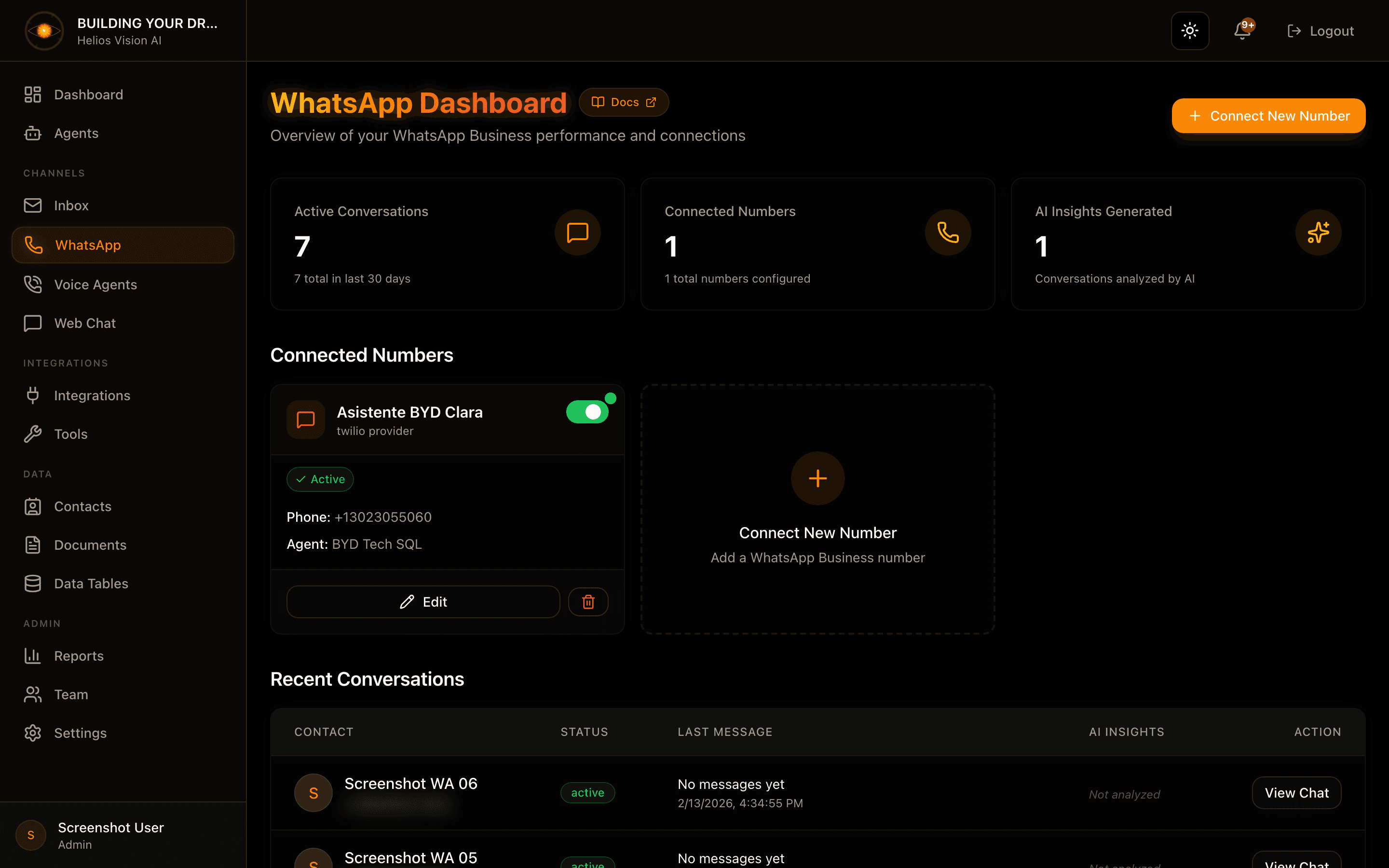
Connect WhatsApp Business numbers to your agents, manage message templates, and work every conversation in real time with AI hand-off, insights, and human takeover.
Access
Sidebar -> WhatsApp
Routes:
- List and connections: /app/{tenant}/whatsapp
- Conversation view: /app/{tenant}/whatsapp/{id}
- Notifications: /app/{tenant}/whatsapp/notifications
- Settings: /app/{tenant}/whatsapp/settings (deprecated — redirects to the main page; all configuration is done through modals)
Roles
- Page and conversations: owner, admin, agent (account must be active).
- Connect / edit / delete a number: owner, admin.
- Connect with WhatsApp (guided OAuth onboarding): owner/admin only, and only for tenants in the early-access allowlist.
- Message Templates: owner/admin only, and only for Meta connections.
- Delete a conversation: owner/admin only.
Prerequisites
- A plan that includes WhatsApp and available number capacity. Without it, the connect action opens an upgrade prompt.
- A verified account email. Adding, editing, or deleting a connection is blocked until the email is verified.
- An Agent that is active and has the WhatsApp channel enabled — a number can only be set Active when an assignable agent is chosen.
- A provider: Meta Cloud API (recommended) or Twilio.
Overview cards
Three summary cards sit at the top of the page:
| Card | Shows | Action |
|---|---|---|
| Active Conversations | Count of active conversations plus total in the last 30 days | Opens the unified inbox filtered to WhatsApp |
| Connected Numbers | Count of active numbers plus total configured | Scrolls to the Connected Numbers section |
| AI Insights Generated | Conversations analyzed by AI (with a summary or sentiment) | Static tile |
Connect a number
Open the flow with Connect New Number (header button) or the add card in the Connected Numbers section.
Step by step:
- Choose a provider: Meta Cloud API or Twilio.
- Fill in the configuration step.
- Press Create Connection.
Shared configuration fields:
| Field | Required | Notes |
|---|---|---|
| Display Name | Yes | Up to 50 characters. |
| Assigned Agent | Yes when Active | Only active agents with the WhatsApp channel enabled appear. Choose Solo (the agent answers alone) or Team (the agent coordinates approved specialists). |
| Active | No | Enable this connection. If set on, an assigned agent is required. |
| Phone Access Control | No | Edit mode only. See below. |
Meta Cloud API
The recommended, direct integration. Includes 1,000 free service conversations per month with no business verification required (AI phone numbers require a payment method on file).
The add form embeds a How to connect your WhatsApp number guide — a 9-step accordion (create a Meta Business, create an app, add your phone number, generate a permanent token, paste credentials, configure the webhook, add a payment method, publish the app, test and activate) that takes about 9 minutes.
Meta fields:
| Field | Required | Notes |
|---|---|---|
| Webhook URL | Read-only | Copy this into Meta's webhook configuration. |
| Webhook Verify Token | Auto-generated | Paste it into Meta when configuring the webhook. Use Regenerate to create a new one. |
| Phone Number ID | Yes | From Meta Business. |
| Business Account ID | No | Your WhatsApp Business Account (WABA) ID. |
| Access Token | Yes | A permanent token. |
| App Secret | Recommended | Used to verify webhook signatures. |
Use Test Connection to validate the Phone Number ID and token before saving. On success it shows the verified display name (and quality rating when available).
Twilio
A managed option that bills per message and requires a Twilio account.
- If Twilio is not connected, enter the Account SID (starts with
AC, 34 characters) and Auth Token (32 characters) to connect it. Get them from the Twilio Console. - Once connected, pick the number from the Twilio dropdown, or switch to manual entry using the format
whatsapp:+1234567890. - Copy the Webhook URL and set it as the incoming-message webhook in the Twilio WhatsApp Senders console.
Connect with WhatsApp (early access)
Allowlisted tenants see a green Connect with WhatsApp button that runs a guided OAuth onboarding: a Meta popup links your WhatsApp Business Account and phone number in a few steps, with no manual token copying. Available to owner/admin only. If your tenant is not in the early-access allowlist, use the manual Meta or Twilio flow above.
Connected numbers
Each connection appears as a row with the display name and, as a subtitle, the phone number (Twilio) or Phone Number ID (Meta). On each row you can:
- Toggle Active / Inactive.
- Open the menu for Edit or Delete (delete requires confirmation; deleting an active number shows a warning).
- Expand the row to see the Business ID (Meta) and assigned agent.
Badges that may appear on a row:
| Badge | Meaning |
|---|---|
meta provider / twilio provider | Whether the number runs on Meta or Twilio. |
| Needs attention | The provider no longer accepts this account's credentials. Click it to open the edit modal and reconnect. |
| Linked agent inactive | The assigned agent is inactive. Click it to pick an active replacement. |
| Solo / Team (N) | Responder mode for the assigned agent, with the approved specialist count for Team. |
Notes:
- When more than one number is connected, a search box and sort control (Name A–Z, Name Z–A, Active first) appear.
- Turning a number on while its linked agent is inactive opens a dialog to choose an active agent before activating.
- If you are already at your plan's number limit, activating or adding a number opens the upgrade prompt instead.
Phone Access Control
Available when editing a connection. It controls which numbers the AI answers:
| Mode | Behavior |
|---|---|
| No restrictions | The AI responds to everyone. |
| Whitelist | Only listed numbers get AI responses; other messages are silently ignored. |
| Blacklist | Listed numbers are blocked and not saved; everyone else gets AI responses. |
| Bypass AI | Listed numbers are saved but not auto-replied; you respond manually. Everyone else gets AI responses. |
You can add numbers one at a time or bulk-import one per line.
Message Templates
Visible to owner/admin for Meta connections only. Templates are pre-approved messages used to start conversations outside WhatsApp's 24-hour customer-service window. They are managed on the WhatsApp Business Account, so multiple numbers on the same account share one list (a source dropdown appears when there is more than one).
The table lists Name, Status, Category, Language, Body, and a delete action. Statuses include Approved, Pending review, Rejected, Paused, Disabled, In appeal, Pending deletion, and Limit exceeded.
Create a template with the Create button:
| Field | Required | Notes |
|---|---|---|
| Name | Yes | Lowercase letters, numbers, and underscores only. |
| Language | Yes | One of: en_US, en_GB, es, es_ES, es_MX, pt_BR, fr, de, it. |
| Category | Yes | Utility (order updates, reminders, transactional) or Marketing (promotions and announcements; stricter review). |
| Header | No | Up to 60 characters. |
| Body | Yes | Up to 1,024 characters. Use placeholders like \{\{1\}\}, \{\{2\}\} for variables. |
| Examples | When variables are used | One example value per placeholder. |
| Footer | No | Up to 60 characters. |
A live preview renders as you type. After submission the template appears as Pending until WhatsApp approves it.
Sentiment overview
When conversations have been analyzed, a panel breaks down Positive, Neutral, and Negative counts across recent conversations.
Recent conversations
A table (cards on mobile) of conversations updated in the last 30 days, most recent first, excluding archived. Columns: Contact, Status, Last Message, AI Insights, and an Action to open the chat.
- Status badges: Active, Closed, Pending.
- A Needs Attention badge marks conversations that require a human or were escalated by the AI.
- Sentiment is shown when it has been analyzed.
Conversation view
Route: /app/{tenant}/whatsapp/{id}
The header shows the contact, the from/to numbers, the channel, the account, and when the conversation started. A Team-assisted badge appears when specialists contributed.
State banners:
- AI escalated — the AI asked for help. Use Take over to handle it as a human.
- Human takeover — a human is handling it. Use Return to AI to release it back.
Controls:
| Control | Effect |
|---|---|
| Status badge | Active, Closed, or Archived. |
| Close | Closes an active conversation. |
| Reopen | Reopens a closed or archived conversation. |
| Archive | Archives a closed conversation. |
| Delete | Owner/admin only. Permanently removes the conversation (with confirmation). |
| AI Active / AI Disabled | Toggle whether the AI auto-replies. When disabled, the conversation is handled by humans only. |
Messaging:
- Send text with the composer (Enter sends, Shift+Enter adds a newline). The same send works for both Twilio and Meta.
- Messages render text, images, video, and downloadable documents.
- Outbound delivery status shows as sent (✓), delivered (✓✓), read (blue ✓✓), or failed (✗).
- The view refreshes new messages automatically.
AI Insights (sidebar on desktop, sheet on mobile):
- Sentiment Analysis and Conversation Summary.
- Generate Insights (or the refresh action) analyzes the conversation. This uses your AI key; if a key is missing or invalid the toast links you to the API keys settings.
Notifications
Route: /app/{tenant}/whatsapp/notifications
Lists escalation alerts, new-message notices, and takeover requests. You can:
- Mark as read an individual notification, or Mark all as read.
- Open View Conversation to jump into the chat.
Good practices
- Assign an active agent (with the WhatsApp channel enabled) before setting a number Active.
- Add the App Secret on Meta connections so webhook signatures are verified.
- Keep a payment method on file for Meta AI numbers even while using the free service-conversation tier.
- Use templates to start conversations outside the 24-hour window; keep names lowercase with underscores.
- Turning off AI hands the conversation to humans only — reply manually or return it to the AI when done.
Common notes
- Twilio numbers do not appear: confirm Twilio is connected and the number is a WhatsApp Sender.
- Send fails: check the number format and that the connection is healthy (look for a Needs attention badge).
- Number cannot be activated: an active, WhatsApp-enabled agent must be assigned.
- Cannot add another number: you may be at your plan's number limit, or your email is not verified.