
Contacts
Manage contacts and leads in the built-in CRM: list and pipeline views, custom fields, AI lead scoring, and CSV import/export.
Objective
Keep every customer relationship in one place, from first lead to loyal customer. Contacts (labeled CRM in the app) gives you a searchable list, a drag-and-drop sales pipeline, custom fields, per-contact timelines, and optional AI lead scoring. Your AI agents read and update these same contacts automatically during conversations.
Access
Sidebar -> Customers -> CRM
Routes:
- List / Pipeline: /app/{tenant}/contacts
- Contact detail: /app/{tenant}/contacts/{id}
- Pipeline stages: /app/{tenant}/contacts/pipeline
- Custom fields and status labels: /app/{tenant}/contacts/fields
- AI lead scoring: /app/{tenant}/contacts/ai
- Import from CSV: /app/{tenant}/contacts/import
- Audiences and consent: /app/{tenant}/contacts/audiences
Roles
- owner, admin, agent — full access to the CRM (view, create, edit, archive, import/export).
- viewer — no access to the CRM.
- Renaming status labels (see Contact status labels) is restricted to owner and admin; agents see those labels read-only.
- Audiences and consent is part of a gradual rollout. If it is not yet enabled for your workspace, contact support.
Prerequisites
- No setup is needed to browse contacts.
- To create, edit, or archive contacts, your account email must be verified.
- AI lead scoring requires a paid plan that includes scoring and your own OpenAI API key connected in Settings (BYOK). See AI lead scoring.
Views
Use the view switcher at the top of the page to move between two layouts of the same contacts:
| View | What it shows |
|---|---|
| List | A dense, searchable, filterable table with stats cards and bulk actions. |
| Pipeline | A Kanban board grouped by pipeline stage, with drag-and-drop and optional deal values. |
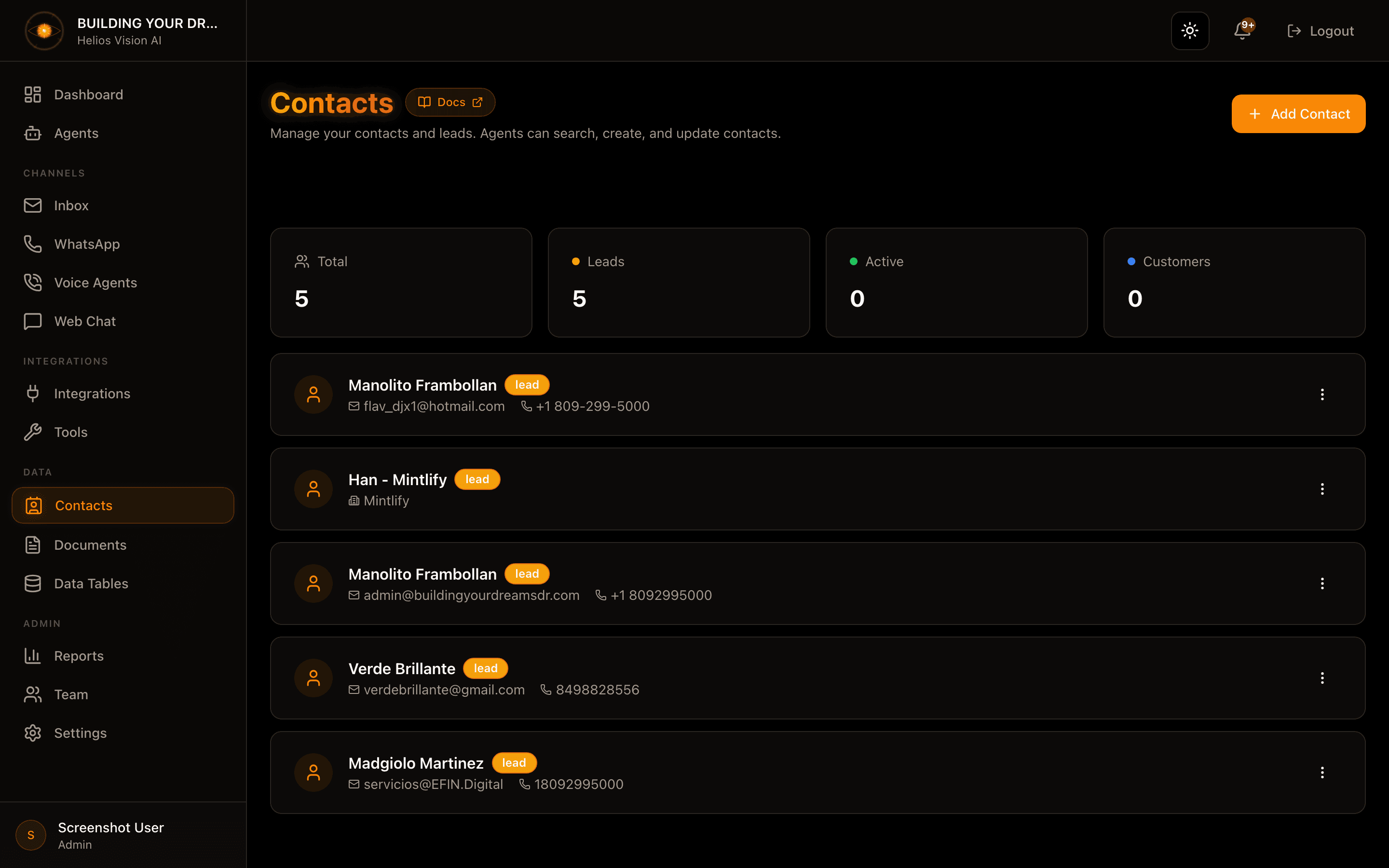
The list shows four server-side stat cards — Total, Leads, Active, Customers — counting all non-archived contacts, not just the current page.
Create a contact (Add Contact)
- Press Add Contact.
- Complete the form.
- Press Create Contact.
Fields:
| Field | Required | Format | Notes |
|---|---|---|---|
| Name | Yes | text | The only required field. |
| Status | No | Lead / Active / Customer | Defaults to Active. A fourth status, Archived, is set only by archiving. |
| No | Must be unique; duplicates are rejected. | ||
| Phone | No | text | Powers the WhatsApp quick action on the detail page. |
| Company | No | text | - |
| Job Title | No | text | - |
| Tags | No | list | Type a tag and press Enter to add it. |
| Notes | No | text | Internal, team-only. |
| Additional Fields | No | varies | Any custom fields you have defined (see Custom fields). Required custom fields must be filled. |
Edit and archive
- Edit — open the three-dot menu on a row (or Edit on the detail page), adjust fields, and press Save Changes.
- Archive — open the three-dot menu and press Archive, then confirm. Archiving is a soft delete: the contact leaves your active list, search, stats, and export, but its data is preserved.
Search, filter, and sort
- Search matches name, email, phone, and company, plus any custom field marked Include in agent search. Input is debounced as you type.
- Filters (Filter button) let you narrow by:
- Status — All, Lead, Active, Customer.
- Tag — any tag in use.
- Owner — All owners, My contacts, Unassigned, or a specific team member.
- Sort — Most recent activity, or Score (only when AI scoring is enabled).
- On desktop the list columns are Name, Company, Stage, Score (when scoring is on), Owner, and Updated.
- Use Load more to page through results (50 per page).
Bulk actions
Select rows with the row checkboxes, or use Select all matching contacts to select every contact that matches the current filters (up to 5,000). The floating action bar then offers:
| Action | Effect |
|---|---|
| Assign to… | Set or clear the owner for the selection. |
| Move to stage… | Move the selection to a pipeline stage. |
| Add tag | Add a tag to every selected contact. |
| Archive | Archive the selection. |
| Rescore with AI | Recompute AI scores (only shown when scoring is enabled). |
Large selections are processed in batches; if a batch fails partway, the list refreshes to show what was applied.
Contact detail
Open a contact to see its full record and history. The header shows the name, status, email and phone (with copy buttons), company, job title, tags, and an owner picker, plus WhatsApp and Email quick actions.
Tabs:
| Tab | Contents |
|---|---|
| Overview | AI Insights (when scoring is on), Details (Source, Created, Last updated), Internal notes, Custom fields, and the campaign consent panel. |
| Activity | A timeline auto-populated from WhatsApp, web chat, voice, and email interactions, plus notes, stage changes, tasks, owner changes, and creation. Filterable by type. |
| Tasks | Add follow-ups, mark them complete or reopen them; overdue items are flagged. |
| Notes | Internal team-only notes attached to the timeline. |
Pipeline stages
The Pipeline (Kanban) view groups contacts into stages, with an Unstaged column for contacts not yet placed. Drag a card to another stage to move it (keyboard accessible). AI score and suggested next action appear on cards when scoring is enabled.
Manage stages at /app/{tenant}/contacts/pipeline (Pipeline stages in the overflow menu):
- Add a stage, and drag to reorder.
- Click a stage to rename or change its color.
- Mark a stage as Won or Lost to classify outcomes.
- The default stage cannot be deleted. Deleting any other stage un-stages its contacts.
Deal values
On the Pipeline board, press Track deal values to add a currency field to your contacts. You can then click a card to enter an amount, and the board shows per-stage totals plus an Open and Won summary based on your Won/Lost stage flags.
Custom fields
Define extra fields for your CRM at /app/{tenant}/contacts/fields (Customize Fields). Custom fields appear in the contact form, on the detail page, and are available to your AI agents.
Each field has a Label, an auto-generated Field Key (lowercase letters, numbers, and underscores; locked after creation), a Type, an optional placeholder and group, and three toggles: Required, Show in list view, and Include in agent search.
Field types:
| Type | Notes |
|---|---|
| Text | Free text. |
| Number | Numeric value. |
| Yes/No | Boolean. |
| Date | Calendar date. |
| Dropdown | Single choice from options you define. |
| Multi-select | Multiple choices from options you define. |
| URL | Web link. |
| Currency | Amount plus a currency code (USD, EUR, GBP, DOP, MXN). |
Deleting a field preserves the data already stored on contacts, but it no longer appears in the UI.
Contact status labels
On the same Customize Fields page, the Contact status labels card lets you rename the four lifecycle statuses (Lead, Active, Customer, Archived) to match your business — for example, a clinic renaming Customer to Patient. Leave a field blank to keep the default. Only the displayed label changes; the underlying values, automations, and agent behavior are unaffected. Editing is limited to owners and admins.
AI lead scoring
AI lead scoring is off by default. When enabled, every contact gets a 0-100 score, a suggested next action, and an insights card, based on their timeline.
Configure it at /app/{tenant}/contacts/ai (AI Scoring in the overflow menu):
- Requires your own OpenAI API key connected in Settings (BYOK — scoring runs on your OpenAI account, roughly $0.0002 per contact).
- Requires a plan that includes scoring. The per-plan nightly budget is:
| Plan | Contacts per nightly run |
|---|---|
| Starter | 50 |
| Growth | 500 |
| Business | 2,000 |
| Enterprise | 10,000 |
| Free / Standard / Pilot | 0 (no nightly scoring) |
- The nightly job runs daily at 04:00 UTC. Contacts with no activity in the last 30 days are skipped to control cost. Recent runs are listed with their status and counts.
- You can also rescore selected contacts on demand from the list's bulk actions.
Import from CSV
Bulk-import contacts at /app/{tenant}/contacts/import (Import CSV).
- Drag a
.csvfile onto the dropzone, or press Choose CSV file. The first row must contain column headers. - Review the preview and the column mapping. Standard columns — name, email, phone, company, job_title, notes, status, and tags (comma-separated) — are auto-matched. Any other column can be mapped to a custom field or skipped.
- A badge shows whether a "Custom field" column resolves to a real field or will be skipped as Unmapped.
- Press Import.
Each row needs at least a name, email, or phone. Rows are skipped (and reported) when they are missing all three, have a duplicate email, or carry an invalid status. Rows without a status default to Lead.
Export to CSV
Use CSV -> Export in the header to download all non-archived contacts as contacts-YYYY-MM-DD.csv. The file includes the standard fields, tags, source, ai_score, timestamps, and one column per custom field (prefixed custom_).
Audiences and consent
Audiences and consent (Audiences and consent in the overflow menu) lets you save reusable segments — rule-based groups built on the same filters as the contacts list — and manage per-channel campaign consent that feeds later campaign features. This module is part of a gradual rollout; if it is not available in your workspace, contact support.
Good practices
- Keep status and pipeline stage current so your stats, filters, and agents reflect reality.
- Fill in email and phone to unlock the WhatsApp and email quick actions.
- Use tags and custom fields to capture what matters for your business, and mark the fields your agents should search.
- Mark stages as Won or Lost so the pipeline can total open and won deal value.
- Rename status labels to match your vertical instead of forcing generic terms.
Common notes
- A contact with this email already exists — emails must be unique; edit the existing contact instead.
- If your account email is unverified, creating, editing, and archiving are blocked until you verify it.
- AI scoring stays off unless you are on a plan that includes it and have connected your OpenAI key.
- On import, rows missing name/email/phone, with a duplicate email, or an invalid status are skipped and listed in the result.
- A custom field's Field Key cannot be changed after the field is created.
- The default pipeline stage cannot be deleted.
- Archived contacts are hidden from the list, search, stats, and export, but their data is retained.